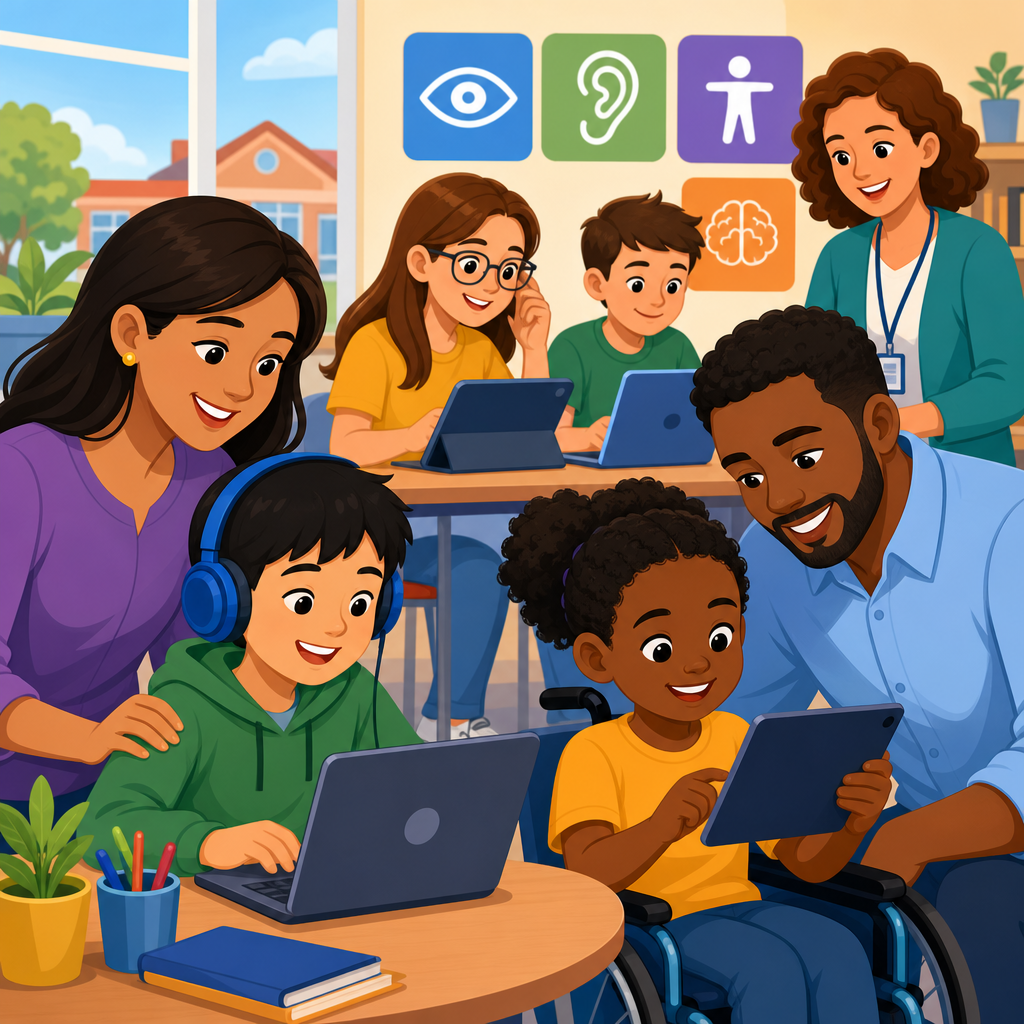
K-12 digital accessibility for parents, students, and staff means designing school websites, learning platforms, documents, videos, and communication tools so everyone can use them, including people with disabilities. In practice, that covers a wide range of needs: a parent who relies on a screen reader to complete enrollment forms, a student with dyslexia using text-to-speech in a reading assignment, a teacher with limited mobility navigating an attendance system by keyboard, or a staff member who is deaf needing captions during district webinars. Accessibility is not a niche technical feature. In K-12 education, it is a basic condition for equal participation in learning, school operations, and family engagement.
The term digital accessibility is often confused with usability or accommodation, but they are not identical. Usability focuses on whether a tool is easy to use for a broad audience. Accommodation usually means an individual adjustment after a barrier appears, such as providing a separate accessible copy of a worksheet. Accessibility goes upstream. It means the main digital experience is built to work for people with visual, hearing, motor, speech, cognitive, learning, and neurological disabilities from the start. The most widely used technical benchmark is the Web Content Accessibility Guidelines, usually called WCAG, which define success criteria for perceivable, operable, understandable, and robust digital content.
This matters because schools now depend on digital systems for nearly everything. Registration, transportation updates, lunch payments, IEP communication, classroom assignments, parent portals, discipline notices, special education documentation, school board livestreams, and emergency alerts all move through websites, apps, PDFs, and videos. When those systems are inaccessible, the impact is immediate and unequal. A family may miss a deadline because a form cannot be completed without a mouse. A student may fall behind because a science video has no captions. A substitute teacher may not access required training because the LMS labels are unreadable by assistive technology. In my work reviewing district platforms, the biggest problems are rarely exotic coding failures. They are ordinary barriers repeated at scale.
K-12 schools also face clear legal and operational pressure. Public schools are generally covered by Title II of the Americans with Disabilities Act and Section 504 of the Rehabilitation Act. Private schools can face obligations under Title III, depending on structure and funding. If a district accepts federal funds, Section 504 requirements are especially relevant. Accessibility failures can trigger Office for Civil Rights complaints, state-level investigations, procurement disputes, parent grievances, and reputational harm. Just as important, inaccessible systems create avoidable workload for teachers, IT teams, and special education staff who must patch around preventable barriers.
As a hub for education accessibility, this guide explains what K-12 leaders, families, educators, and support teams need to understand first: the legal baseline, the most common barriers, the platforms that deserve priority, and the practical steps that make school digital experiences usable for everyone.
Why accessibility in K-12 education requires a whole-community approach
K-12 accessibility is different from accessibility in retail or entertainment because schools serve overlapping audiences with very different tasks. A second grader interacts with literacy software differently than a high school student using a college planning portal. Parents and guardians need accessible enrollment, transportation, health, payment, and communication systems. Teachers need accessible gradebooks, curriculum tools, HR forms, and professional development content. Front office staff, paraprofessionals, coaches, and board members also use district technology every day. A school cannot solve accessibility by fixing only the public homepage.
The whole-community approach starts with recognizing that disability is part of every school population. The Centers for Disease Control and Prevention has long estimated that roughly one in four adults in the United States has a disability, and schools also serve large numbers of students with disabilities through IEPs, 504 plans, and short-term support needs after injuries or illnesses. Accessibility also overlaps with aging caregivers, multilingual families using translation tools, and users in low-bandwidth environments. When headings are clear, links are descriptive, captions are accurate, and forms are keyboard accessible, many groups benefit at once.
In practical terms, school accessibility touches instruction, administration, family engagement, procurement, and crisis communication. If a district posts weather closures only as an image with tiny text on social media, some families will not receive the message. If a classroom teacher uploads scanned worksheets as image-only PDFs, a student using a screen reader cannot read them independently. If a payroll portal times out quickly and gives no warning, staff using assistive technology may be locked out. These are not separate problems. They are symptoms of accessibility not being treated as a shared operational standard.
Core standards, legal duties, and what schools are expected to meet
Most school teams need a plain answer to one question: what standard should we use? The practical answer is WCAG 2.1 Level AA, and in many cases teams now plan toward WCAG 2.2 Level AA because newer procurement and remediation efforts increasingly reference it. WCAG is not a software product. It is a technical standard developed by the World Wide Web Consortium. It covers issues such as color contrast, keyboard access, headings, alternative text, focus indicators, error identification, labels, captions, transcripts, and predictable navigation. If your district needs a measurable benchmark for websites, forms, portals, and course content, this is the one most often used.
Schools also need to understand legal duties beyond the standard itself. Under disability law, equal access is the goal, not merely a website score. An inaccessible online registration workflow can be discriminatory even if some pages pass automated scans. OCR resolutions have repeatedly emphasized timely, accurate, and equally effective communication. That means schools should not rely on a parent calling the office for help every time an online process breaks. Manual alternatives may be necessary temporarily, but they do not replace the obligation to fix the digital barrier.
Procurement is one of the strongest control points. Before renewing an LMS, SIS, reading platform, transportation app, or mass notification tool, districts should request a current accessibility conformance report using the Voluntary Product Accessibility Template format, ask targeted questions about keyboard support and screen reader compatibility, and test critical tasks in a real workflow. I have seen districts inherit years of accessibility debt because contracts were signed based on marketing promises rather than task-based verification.
Common accessibility barriers across school websites, LMS platforms, and documents
The most common barriers in K-12 are consistent across districts. First, poor document structure causes major problems. Staff often upload PDFs exported from scans, leaving no readable text layer, no headings, and no meaningful tag structure. Screen readers cannot interpret these files correctly, and mobile users struggle too. Second, videos frequently lack synchronized captions or provide captions so inaccurate they miss educational meaning. Third, forms are often unlabeled, use placeholder text as the only instruction, or fail to announce errors clearly. Fourth, visual design choices, especially low color contrast and tiny text, make content hard to read for users with low vision and many older caregivers.
Navigation barriers are equally common. Dropdown menus that open only on hover block keyboard users. Buttons with vague labels like “click here” or “more” create confusion for screen reader users when repeated across a page. Carousels auto-advance before users can read them. Pop-ups trap keyboard focus. Embedded calendars and maps are often impossible to use nonvisually. Inside learning platforms, inaccessible drag-and-drop activities, timed quizzes without adjustable settings, and discussion tools that do not announce new content can interfere directly with instruction.
Plain language matters too. Accessibility is not only about code. Parent communications filled with district jargon, abbreviations, and long dense paragraphs can be difficult for users with cognitive disabilities, dyslexia, or limited English proficiency. Better writing improves access. So does consistent layout. If every teacher organizes course materials differently, families spend energy decoding navigation instead of finding assignments.
| Area | Frequent barrier | School impact | Practical fix |
|---|---|---|---|
| Documents | Scanned image-only PDFs | Students and parents cannot read with screen readers | Create tagged source files in Word or Google Docs, then export accessibly |
| Video | Missing or inaccurate captions | Students miss instruction; staff training becomes inaccessible | Caption all required media and review accuracy for names and subject terms |
| Forms | Unlabeled fields and unclear errors | Enrollment, payments, and consent workflows fail | Use programmatic labels, field instructions, and error messages tied to inputs |
| Navigation | Mouse-only menus | Keyboard and switch users get blocked | Test all menus, dialogs, and buttons using only the keyboard |
| Instructional tools | Inaccessible quizzes and activities | Students cannot complete graded work independently | Review critical learning tasks with assistive technology before adoption |
Accessibility for parents and guardians: enrollment, communication, and trust
Family-facing accessibility deserves special attention because many districts focus narrowly on student content and overlook operational journeys that parents must complete. Enrollment packets, immunization uploads, transportation requests, fee payments, school lunch systems, volunteer applications, and parent-teacher conference scheduling all need accessible design. If one inaccessible step blocks the process, the family experiences the district as closed off, even if the homepage looks polished.
Accessible communication builds trust. Schools should caption board meetings, provide accessible agendas and minutes, use meaningful link text in email messages, and avoid posting essential information only as flyer images on social media. Emergency messaging should work across channels and remain readable on mobile devices. Translation tools can help, but they do not solve inaccessible layout or missing text alternatives. Parents using screen readers often tell districts the same thing: the problem is not unwillingness to engage; the problem is being forced to ask for help for routine tasks others can complete privately in minutes.
Parent portals are a recurring weak point. Attendance summaries, grade reports, and behavior dashboards may be technically available but practically unusable if table headers are not coded properly, focus order is broken, or status changes are conveyed only by color. Districts should test the top five parent tasks from start to finish, not just isolated pages. Can a parent reset a password, sign a consent form, review an IEP meeting notice, and update emergency contacts without assistance? That is the real benchmark.
Accessibility for students and teachers: daily instruction, assessment, and classroom workflow
For students and teachers, accessibility lives inside daily routines. Reading assignments, slide decks, worksheets, quizzes, classroom videos, digital whiteboards, and third-party apps all shape whether learning is genuinely available. The best districts treat accessible instructional design as a teaching quality issue, not an afterthought for disability services. Teachers need workable patterns: using heading styles, writing descriptive links, choosing readable fonts, avoiding text embedded in images, checking color contrast, and providing captions and transcripts for multimedia. Small habits prevent large barriers.
Assessment requires extra care. Timed activities, lockdown browsers, and proctoring software can create serious conflicts with assistive technology and approved accommodations. Even when a platform supports extra time, inaccessible question types can still invalidate the experience. For example, a drag-and-drop labeling exercise in biology may be impossible with a screen reader unless an equivalent keyboard method exists. Schools should identify high-stakes workflows first: state test practice, benchmark assessments, math tools, science simulations, and writing platforms.
Training matters because many educators create digital content without formal accessibility instruction. Short, role-based guidance works better than generic policy memos. A teacher needs examples tied to lesson materials. A registrar needs form and PDF guidance. A communications director needs standards for web posts, newsletters, and livestreams. An IT administrator needs testing protocols for templates and vendor updates. When training is concrete, adoption improves quickly.
How districts can build an accessibility program that lasts
Sustainable accessibility does not come from one audit or one champion. It comes from governance, procurement discipline, content standards, and recurring review. Start by naming an accessibility lead or cross-functional committee with representation from IT, curriculum, special education, communications, procurement, and family engagement. Then inventory major systems: district website, school sites, LMS, SIS, HR portal, payment tools, transportation apps, cafeteria systems, board platforms, and document repositories. Rank them by user impact and legal risk.
Next, define a remediation workflow. Automated tools such as WAVE, axe, Lighthouse, and Siteimprove can catch missing alt text, contrast failures, and some structural errors, but they do not replace manual testing. Schools should test with keyboard-only navigation and common screen readers such as NVDA, JAWS, and VoiceOver for high-priority tasks. Include users with disabilities whenever possible. Their feedback reveals friction that checkers miss, especially in multi-step processes.
Finally, publish an accessibility statement with contact information and a clear response path. That statement should not be performative. It should connect to a ticketing or escalation process that can resolve barriers quickly while permanent fixes are underway. For a K-12 district, the benefit is broader than compliance. Accessible systems reduce support calls, improve parent participation, strengthen instructional consistency, and make digital learning more resilient for everyone. If your education organization treats this page as the hub, use it to prioritize audits, procurement reviews, staff training, and content cleanup across every school and platform. Start with the highest-impact tasks, fix them well, and build accessibility into every future decision.
Frequently Asked Questions
What does K-12 digital accessibility mean for parents, students, and school staff?
K-12 digital accessibility means creating and maintaining digital tools and content that can be used by everyone, including people with disabilities. In a school setting, that includes websites, parent portals, online enrollment forms, classroom platforms, digital assignments, email communications, PDFs, videos, mobile apps, and staff systems such as payroll, attendance, and HR tools. Accessibility is not limited to one group or one type of disability. It supports parents who use screen readers, students who need captions or text-to-speech, teachers who navigate by keyboard instead of a mouse, and staff members who may need clear layouts, high color contrast, or predictable navigation to complete daily tasks efficiently.
In practical terms, accessibility means digital content is designed so it can be perceived, understood, navigated, and operated by a wide range of users. For example, an accessible school website should have headings in the correct order, form fields with clear labels, links that make sense out of context, and documents that work with assistive technology. An accessible video should include accurate captions and, when needed, transcripts. An accessible online learning activity should not rely only on color, drag-and-drop, or timed actions that some users may not be able to complete. When accessibility is built in from the start, it improves usability for the entire school community, not just those with formal accommodations.
Accessibility also helps schools meet legal and ethical responsibilities. Public schools and many private schools have obligations under disability rights laws and civil rights requirements to provide equal access to educational programs, services, and communications. Just as important, accessible digital experiences reduce frustration, improve participation, and create a more inclusive environment where families, students, educators, and staff can fully engage with school life.
Why is digital accessibility so important in K-12 education?
Digital accessibility is essential in K-12 education because schools now depend heavily on technology for learning, communication, and operations. Families register students online, review grades in portals, sign permission slips digitally, watch board meeting videos, and receive school updates through websites, apps, and email. Students use learning management systems, digital textbooks, videos, testing platforms, and classroom tools every day. Teachers and staff rely on internal systems for attendance, lesson planning, reporting, professional development, and communication. If any of those tools are inaccessible, people can be excluded from core school functions.
For students, inaccessible digital content can directly interfere with learning. A worksheet that is really just an untagged image PDF may be unreadable to a student using a screen reader. A video without captions may block access for a student who is deaf or hard of hearing. A reading platform that does not work well with text-to-speech can create unnecessary barriers for a student with dyslexia or another print-related disability. These are not minor inconveniences; they can affect academic progress, independence, participation, and confidence.
For parents and guardians, inaccessible communication can make it harder to stay informed and involved. If enrollment forms cannot be completed by keyboard, if calendars are posted as inaccessible images, or if transportation updates are announced in a way that cannot be accessed by assistive technology, families may miss important deadlines or information. For teachers and staff, inaccessible systems can limit job performance, create administrative burdens, and require workarounds that others do not need. In short, accessibility supports educational equity, strengthens family engagement, improves staff productivity, and helps schools serve their communities fairly and effectively.
What are common examples of accessibility barriers in school websites, documents, videos, and learning platforms?
Common barriers appear in many everyday school materials and systems. On websites, frequent problems include missing alternative text for images, poor color contrast, confusing navigation, unlabeled buttons, empty links, and forms that cannot be completed with a keyboard or screen reader. A school homepage may look polished visually but still create problems if menu items are not coded correctly, announcements are posted only as image flyers, or calendars are difficult to interpret with assistive technology. These issues can make simple tasks like finding school hours, accessing lunch menus, or completing registration far more difficult than they should be.
Documents are another major source of barriers. Many schools share PDFs, Word files, and slide presentations that are not structured for accessibility. Examples include scanned PDFs with no readable text layer, headings that are styled visually instead of using real heading tags, tables without proper headers, tiny fonts, crowded layouts, and links labeled only as “click here.” These problems can affect anyone, but they are especially difficult for people using screen readers, magnifiers, voice input, or reading support tools. Even a routine form can become inaccessible if fields are not labeled clearly or if instructions depend only on color, such as “required items are marked in red.”
Videos and learning platforms have their own challenges. Videos may lack accurate captions, transcripts, or audio descriptions when visual information is essential. Classroom tools may include drag-and-drop interactions that do not work with keyboards, timers that cannot be adjusted, pop-up windows that trap keyboard focus, or text that cannot be resized. Some platforms also generate content in ways that are inconsistent or confusing for assistive technology users. The important point is that accessibility barriers often arise from routine publishing and procurement decisions, not from rare technical failures. Once schools understand the common patterns, they can begin fixing them systematically.
How can schools make digital content more accessible for parents, students, and staff?
Schools can make digital content more accessible by combining good design practices, staff training, accessible technology choices, and clear processes for review and improvement. A strong starting point is to use accessibility standards and best practices consistently across websites, documents, videos, and platforms. That means using proper heading structures, descriptive link text, sufficient color contrast, keyboard-accessible navigation, labeled form fields, meaningful alternative text for images, and captions for video content. It also means avoiding design choices that create barriers, such as posting important information only in image form or relying on file formats that are difficult for assistive technology to interpret.
Document creation is one of the fastest areas for improvement. Teachers, office staff, and administrators who produce handouts, letters, slide decks, and forms should know how to create accessible files from the beginning. Simple habits make a big difference: use built-in heading styles, write clear titles, format lists properly, label tables, check reading order, and export PDFs in a way that preserves accessibility features. For multimedia, schools should provide accurate captions for videos, transcripts when appropriate, and accessible players that work with keyboard and screen reader navigation. For online learning and communication tools, schools should evaluate whether the product supports assistive technology, resizable text, captioning, and predictable interaction patterns.
Just as important, schools should build accessibility into decision-making, not treat it as an afterthought. That includes training staff regularly, assigning responsibility for accessibility oversight, testing content with both automated tools and human review, and establishing a way for users to report access problems. Procurement is also critical: before adopting a new app, portal, or instructional platform, schools should ask vendors detailed accessibility questions and request documentation. When accessibility is part of everyday workflow, schools reduce barriers proactively and create better digital experiences for everyone in the community.
What should parents, students, or staff do if they encounter an accessibility problem in a school digital resource?
If someone encounters an accessibility problem, the first step is to document the issue clearly and report it through the school or district’s established contact method, if one is available. Helpful details include the page, form, document, or platform involved; the device and browser being used; the assistive technology involved, if any; and a short description of what is not working. For example, a parent might report that an enrollment form cannot be completed with a screen reader, a student might note that class videos do not have captions, or a staff member might explain that an internal attendance system cannot be operated by keyboard alone. Specific information makes it easier for the school or vendor to investigate and resolve the problem efficiently.
At the same time, schools should offer an accessible alternative while the issue is being fixed. If an online form is inaccessible, there should be another timely way to complete the same task. If classroom materials are blocked by formatting problems, the student should receive accessible versions without delay. Accessibility concerns should not result in someone waiting longer for services, information, or participation. Responsive schools understand that fixing the technical issue matters, but so does ensuring immediate access in the moment.
From the school’s perspective, reported barriers are valuable signals that systems and processes need improvement. A good response includes acknowledging the concern, communicating next steps, coordinating with the relevant department or vendor, and following up after the issue is addressed. Over time, districts can use these reports to identify recurring problems, strengthen training, and improve purchasing and publishing practices. For parents, students, and staff, the key takeaway is that accessibility issues should be raised, tracked, and resolved just like any other barrier to participation. Equal access is part of effective school service, not an optional extra.