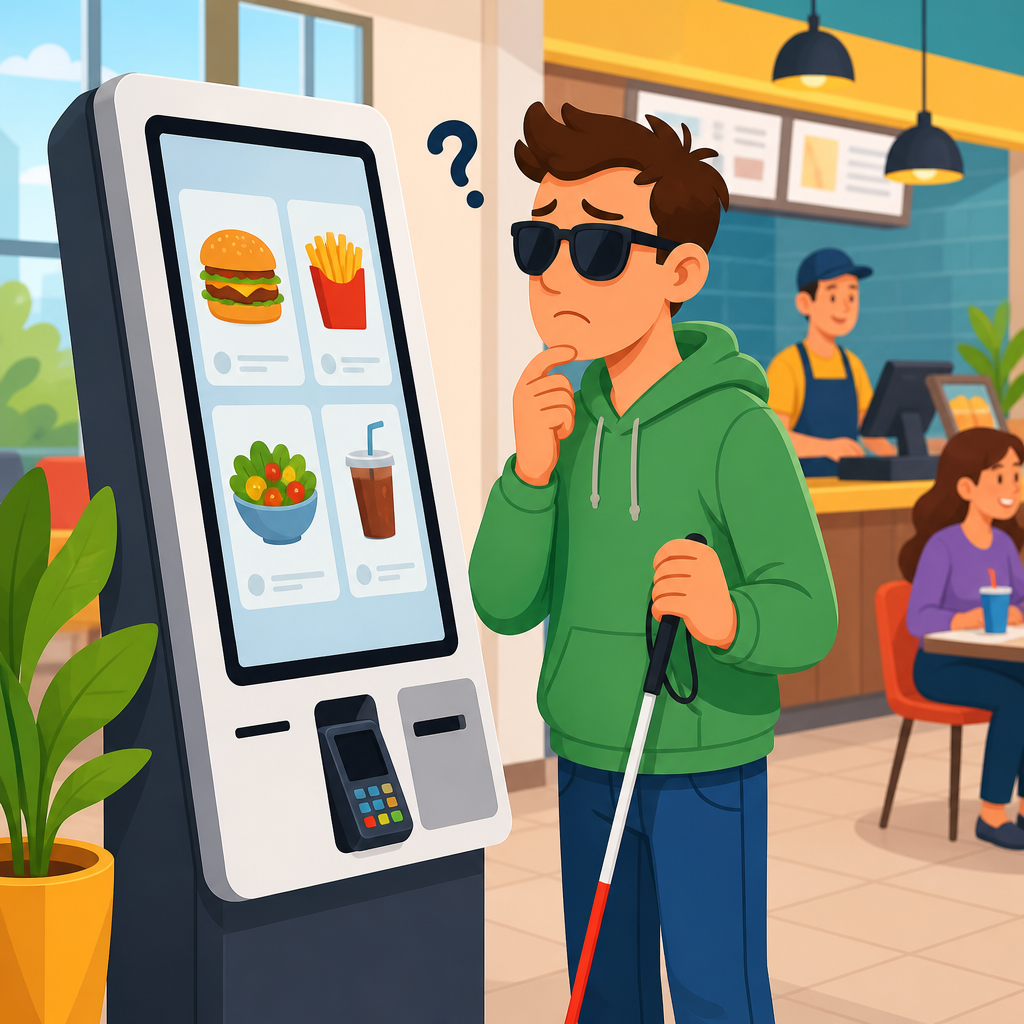
A customer cannot use a touchscreen kiosk without vision, and that simple fact exposes one of the clearest gaps between formal accessibility promises and everyday public access. In retail stores, airports, fast-food restaurants, hospitals, pharmacies, hotels, and government offices, touchscreen kiosks now handle check-in, ordering, wayfinding, ticketing, and payment. For many businesses, kiosks reduce labor costs and speed transactions. For blind and low-vision customers, however, a flat glass screen with no tactile controls, no audio output, and no usable assistive interface can become a locked door. When a kiosk is the primary or only path to service, the barrier is not inconvenience; it is exclusion.
This article examines rights in action through the specific problem of inaccessible touchscreen kiosks. A touchscreen kiosk is a self-service device that lets a user complete a task through an on-screen interface. Vision loss exists on a spectrum, from low vision that may require magnification or strong contrast to total blindness that requires nonvisual interaction. Accessibility means the kiosk can be used independently, privately, and with substantially equivalent ease. In practice, that often requires tactile controls, a headphone jack with spoken prompts, screen reader support, clear focus order, reachable hardware, sufficient time limits, and an alternative path that is genuinely equivalent rather than slower, more invasive, or dependent on staff discretion.
This topic matters because kiosk use has expanded faster than compliance habits. I have reviewed kiosk deployments where teams carefully tested payment security, receipt printing, and remote management, yet never asked whether a blind customer could start the transaction at all. That omission creates legal risk, operational friction, and reputational damage, but more importantly it denies equal participation. As a hub page, this article connects the legal framework, recurring fact patterns, common defenses, business obligations, and real-world applications that define this area of disability rights. It gives readers a working map for understanding when an inaccessible kiosk becomes a rights issue and what effective correction looks like in the field.
Why a touchscreen-only kiosk creates a legal and practical barrier
A touchscreen-only kiosk creates a barrier because touch interaction assumes visual discovery of controls. A blind user cannot locate unlabeled buttons, review changing menus, verify selections, or correct errors on a smooth screen without a nonvisual interface. Even many low-vision users cannot reliably complete tasks if glare, small text, poor contrast, or cluttered layouts are present. If the kiosk handles payment, the problem extends to privacy and independence. Reading a card prompt aloud through staff assistance is not equivalent access. A customer should not have to disclose a PIN, medical information, or travel details just to complete a routine transaction.
From a rights perspective, the core question is straightforward: can the customer obtain the same goods or services with substantially equivalent privacy, accuracy, timeliness, and dignity? In many deployments, the answer is no. A restaurant may require all custom orders at a kiosk during peak hours. A hospital may direct patients to digital check-in before seeing registration staff. An airport may use kiosks for baggage tags and seat changes when lines at staffed counters are limited. A blind customer can be delayed, diverted, singled out, or denied service entirely. Courts and regulators often look closely at this functional reality rather than accepting generic statements that staff can help if needed.
Established accessibility standards provide a practical benchmark. The 2010 ADA Standards for Accessible Design include provisions for self-service transaction machines, and WCAG principles remain useful for software behavior, especially around perceivability, operability, understandable content, and robust compatibility. In transport and ticketing contexts, additional rules may apply under other federal statutes or agency regulations. The specific legal pathway varies by venue, but the operational principle is stable: if an organization deploys self-service technology used by the public, accessibility cannot be an afterthought added only after complaints arrive.
Rights in action: recurring case-study patterns across industries
Real-world kiosk disputes tend to follow recognizable patterns. The first is substitution without equivalence. A business removes staffed ordering or check-in, then points blind customers to employee assistance. That solution fails when staff are unavailable, rushed, untrained, or required to read confidential information. The second pattern is partial accessibility. A kiosk may offer audio only after a hidden icon is tapped on the screen, or it may include a headphone jack but no tactile way to start speech. The third is maintenance failure. Even accessible features become useless if headphones are missing, keypads are broken, software updates disable speech output, or volume settings reset after each use.
In restaurant settings, the issue often appears during digital ordering rollouts. A chain installs wall-mounted kiosks to increase average order value through upsell prompts. Sighted customers browse images, compare combo options, and pay quickly. A blind customer, however, may encounter an idle attract screen with no audible cue, no tactile controls, and no staff nearby because labor has been shifted toward food preparation. The legal problem is not simply that the interface is modern; it is that the redesign changed the customer journey in a way that excluded a protected class from the standard method of purchase.
Healthcare presents a different but equally serious context. Registration kiosks often collect insurance data, addresses, symptoms, and consent forms. When a blind patient must provide this information through a staff intermediary, confidentiality concerns arise immediately. The patient may be forced to reveal sensitive health details in a waiting room. If the kiosk also verifies identity or signs treatment documents, lack of accessibility can compromise informed consent. In my experience, healthcare operators frequently underestimate this privacy dimension and focus only on throughput. That is a mistake. Accessibility in medical intake is about both equal access and protected decision-making.
Transportation case studies often center on urgency. A passenger using a rail or airport kiosk may need to print a boarding pass, retag a missed connection, or change seats under time pressure. An inaccessible interface can mean a missed train, an extra fee, or separation from a travel companion. Because the customer has little practical time to seek managerial help, the barrier is amplified by the context. Similar urgency appears in parking payment stations, hotel check-in banks, movie ticket kiosks, and pharmacy pickup systems. The more time-sensitive the service, the less credible a “just ask someone” defense becomes.
What compliance looks like in practice
Effective kiosk accessibility combines hardware, software, placement, and policy. A usable setup usually includes a tactilely identifiable audio start control, a standard headphone jack, spoken navigation, clear prompts, a tactile keypad or other nonvisual input method, volume control, and speech output for all critical information, including errors and confirmations. Hardware must also be mounted within reach ranges, with sufficient clear floor space for wheelchair users. Software should preserve logical focus order, avoid gesture-only interactions, support enough time to complete steps, and announce status changes consistently. These are not edge requirements; they are baseline conditions for independent use.
The table below shows how common failures map to workable corrections. Teams that use this kind of gap analysis during procurement and acceptance testing avoid most complaints before launch.
| Common kiosk failure | User impact | Practical correction |
|---|---|---|
| Touchscreen only, no tactile controls | Blind user cannot begin or navigate transaction | Add tactile keypad or equivalent nonvisual input plus audio prompts |
| Audio available only through on-screen icon | Speech mode cannot be discovered without sight | Provide a physical audio-start button with tactile marking |
| Headphone jack present but unlabeled or disabled | User cannot access private spoken information | Label, test, and monitor headphone function in maintenance routines |
| Poor contrast and small text | Low-vision users cannot read menus or prices | Use scalable text, high contrast, glare reduction, and plain layouts |
| Staff-only workaround | Reduced privacy, longer wait, inconsistent access | Provide equivalent independent access and train staff for backup support |
Procurement is where many rights problems are either prevented or baked in. Buyers should require vendors to document accessibility features, map them to recognized standards, and demonstrate them on production hardware rather than in slides. Contracts should include remediation timelines, update testing obligations, and acceptance criteria tied to actual use cases such as ordering, payment, refund processing, and receipt review. I have seen organizations request a voluntary product accessibility template yet never verify whether the delivered build matched the claims. A paper promise is not a field test. Accessibility must survive shipping, installation, localization, and software updates.
Operational policy matters just as much. A compliant kiosk can still fail customers if employees do not know how to enable audio, connect accessories, clean ports without damaging them, or move a customer to an equivalent accessible station when a unit is down. Support scripts should protect privacy and avoid infantilizing language. Maintenance logs should track accessibility defects explicitly rather than burying them under general incidents. If a business monitors payment uptime and printer status but not speech output and keypad function, it is not managing accessibility as a mission-critical feature.
Common defenses, limits, and how disputes are resolved
Organizations commonly argue that accessibility is satisfied because staff can assist, because some customers with disabilities have completed transactions, or because a future software release will address the issue. These defenses are weak when the kiosk is central to service delivery. Equal access is measured by actual usability, not optimistic intent. Staff assistance may be an important backup, but it rarely replaces independent use, especially for payment, healthcare intake, age-restricted purchases, or travel changes. Likewise, anecdotal success by one user does not prove broad accessibility. Disability accommodations must work reliably across the relevant user population and across ordinary operating conditions.
There are, however, real nuances. Some legacy machines may be difficult to retrofit fully, and not every public interface falls under the same technical rule set. Small entities may face phased replacement decisions, and certain environments impose security or durability constraints. Those realities do not erase obligations. They simply shape what prompt, effective correction looks like. In disputes, outcomes often turn on whether the business had a reasonable accessibility process: accessible procurement language, predeployment testing, a complaint pathway, rapid repair practices, and an interim method of equivalent service that is dependable while fixes are underway.
Resolution can occur through internal escalation, demand letters, structured negotiation, regulatory complaints, or litigation. The strongest cases usually document the full customer journey: where the kiosk was located, what task was attempted, whether speech or tactile input existed, what staff said, how long the delay lasted, and whether private information had to be disclosed. Photos, videos, maintenance records, training materials, and vendor manuals can become important evidence. Businesses that respond effectively tend to move quickly from denial to verification. They test the device with blind and low-vision users, correct hardware and software gaps, retrain staff, and publish a clear accessible-service policy.
Using this hub: the wider rights-and-protections landscape
This hub article anchors a broader set of rights in action topics. From here, readers can branch into venue-specific analyses such as restaurant ordering kiosks, hospital check-in systems, ticketing and transit machines, hotel self-service check-in, retail self-checkout, and government service terminals. Each application raises distinct facts, but the central rule remains the same: if the business offers self-service to the public, blind and low-vision customers must have an effective way to use it with independence and dignity. The best downstream articles will compare legal duties, technical requirements, evidentiary issues, and remediation strategies for each setting.
Readers should also connect kiosk accessibility to adjacent protections. Website and mobile app accessibility often shape the same customer journey before and after the physical kiosk interaction. Effective communication rules matter when audio instructions, support channels, or accessible documentation are missing. Reasonable modification principles matter when a policy insists on kiosk-first service despite known barriers. Procurement controls, vendor management, and quality assurance are also part of the rights story because many failures originate upstream, long before a customer ever reaches the machine. Looking at the whole system produces stronger compliance and better outcomes.
The practical takeaway is clear. A customer cannot use a touchscreen kiosk without vision unless the kiosk includes a true nonvisual interface and the organization maintains it as seriously as any other core business function. Rights in action means moving beyond abstract commitments and evaluating what happens in the moment of service: can the customer start, navigate, confirm, pay, and finish privately and independently? If not, the barrier is real, the risk is immediate, and the fix should be concrete. Use this hub to assess your locations, review your vendors, strengthen your policies, and build accessible self-service that works in the real world.
Frequently Asked Questions
Why can’t a blind customer independently use a standard touchscreen kiosk?
A standard touchscreen kiosk usually depends on visual interaction at every step. The user is expected to locate buttons on a flat glass surface, read prompts, recognize changes on the screen, and confirm selections by sight. For a blind customer, that creates an immediate barrier because there are no tactile landmarks to indicate where controls are located or whether the correct option has been chosen. Unlike a keypad with raised buttons, a touchscreen offers no physical cues that can be felt and used for orientation.
The problem is not simply that the screen is difficult to see. It is that the entire interface often assumes continuous visual monitoring. Menus may change position, buttons may appear only after earlier selections are made, time-out warnings may display silently, and payment steps may require visual confirmation. Even a low-vision customer who can see some content may struggle with glare, poor contrast, small text, crowded layouts, or confusing navigation. In real-world environments such as airports, restaurants, pharmacies, hospitals, and retail stores, noise, pressure, and long lines make these problems worse.
As a result, a blind customer may be forced to rely on staff or companions to complete tasks that should be private and independent, including ordering food, checking in for medical appointments, printing tickets, entering personal information, or making payments. That loss of independence is exactly why inaccessible kiosk design is such a significant public access issue.
What accessibility features should a touchscreen kiosk include for blind and low-vision users?
An accessible kiosk should provide a nonvisual way to complete every function available through the touchscreen. In practice, that usually means adding a tactilely discernible input method, such as a keypad with raised and identifiable buttons, along with audio output that guides the user through the interface. A headphone jack is commonly used so the kiosk can deliver private spoken instructions once a user plugs in headphones. Clear speech prompts should announce available options, focus location, errors, confirmation messages, and transaction progress from start to finish.
For low-vision users, the kiosk should also support high-contrast display settings, large readable text, plain language, glare reduction, and layouts that are easy to understand quickly. Controls should be consistently placed, labels should be unambiguous, and the interface should not require precise gestures or split-second reactions. If the system includes payment, ticketing, signatures, maps, or printed output, those features must also be usable in an accessible way rather than becoming inaccessible at the final step.
Equally important, accessibility should be built into the kiosk as a complete user experience, not added as a token feature. If audio only works on the first screen but not during payment, or if the tactile keypad activates some menus but not all, the kiosk is still not meaningfully accessible. A truly accessible kiosk allows blind and low-vision customers to navigate, understand, decide, and complete the full transaction independently and with privacy.
Does offering staff assistance solve the accessibility problem?
No. Staff assistance may help in the moment, but it is not the same as independent accessibility. When a business tells a blind customer to ask an employee for help, it shifts the burden from the design of the kiosk to the customer who has been excluded by that design. It also creates inconsistency. One employee may be patient and well trained, while another may be rushed, unavailable, or unfamiliar with the system. In busy public settings, a customer may have to wait longer, disclose private information out loud, or depend on someone else to make selections and complete payment.
That matters because many kiosk interactions involve personal and sensitive information. A patient checking in at a hospital, a traveler confirming flight details, or a customer entering card information at a pharmacy should not have to reveal private data just because the interface is inaccessible. Accessibility is about more than gaining access to the transaction somehow; it is about equal access, privacy, dignity, and independence.
Businesses can and should train staff to assist customers when needed, but staff help should be a backup, not a substitute for accessible design. If a kiosk is replacing a staffed service point, then the kiosk itself must be usable by people with disabilities on substantially equal terms. Otherwise, the technology may improve efficiency for the business while reducing access for the public.
Where are inaccessible kiosks most commonly found, and why is this such a widespread issue?
Inaccessible kiosks appear across nearly every major public-facing industry. They are common in fast-food restaurants for ordering, airports for check-in and boarding passes, hotels for registration, hospitals and clinics for patient intake, pharmacies for prescription pickup, retail stores for self-checkout, transit stations for tickets, and government offices for public services. Because self-service technology is often marketed as faster and cheaper, many organizations deploy kiosks quickly without fully considering how blind and low-vision customers will use them.
The issue is widespread because kiosks are frequently treated as a convenience upgrade rather than as a critical access point. But once a kiosk becomes the primary or only way to begin a transaction, its accessibility becomes essential. A restaurant kiosk may be the main ordering method. A hospital kiosk may be the first step in arriving for care. An airport kiosk may control seat assignment, baggage check, or boarding documents. When these systems are inaccessible, the barrier is not minor. It can delay service, block purchases, compromise privacy, or effectively deny participation.
This problem also persists because organizations may assume that smartphone apps, roving staff, or general customer service policies are enough to fill the gap. In practice, those alternatives are often incomplete, inconsistent, or unavailable. Public accommodations increasingly rely on kiosks for routine access, which means accessibility can no longer be treated as optional or secondary. It must be part of deployment, procurement, testing, and daily operation.
What should businesses do if they want kiosk technology without excluding blind and low-vision customers?
Businesses should start by treating accessibility as a core requirement from the beginning, not as a fix after installation. That means asking accessibility questions during procurement, requiring vendors to demonstrate nonvisual operation, and evaluating whether every task on the kiosk can be completed by a blind or low-vision user independently. Accessibility should be tested in realistic conditions, including noisy environments, time-limited transactions, payment steps, and workflows involving personal information. If the kiosk cannot support equal use, it should not be deployed as the primary customer interface.
Organizations should also look beyond the screen itself. The physical placement of the kiosk matters. It should be reachable, logically located, and usable by customers who rely on canes, mobility devices, or assistance animals. Audio features should be easy to activate, tactile controls should be clearly identifiable, and maintenance staff should know how to keep accessibility features functioning. A kiosk with a broken headphone jack or disabled audio mode is not accessible in practice, even if it was designed to be.
Finally, businesses should build accessibility into policy and accountability. Staff should know how the accessible features work, how to respond respectfully when a customer encounters a barrier, and how to escalate technical issues quickly. Companies that use kiosks to improve efficiency should recognize that accessibility is part of customer service, legal compliance, and brand trust. The goal is not simply to avoid complaints. It is to ensure that blind and low-vision customers can participate in everyday public life with the same independence, privacy, and convenience offered to everyone else.