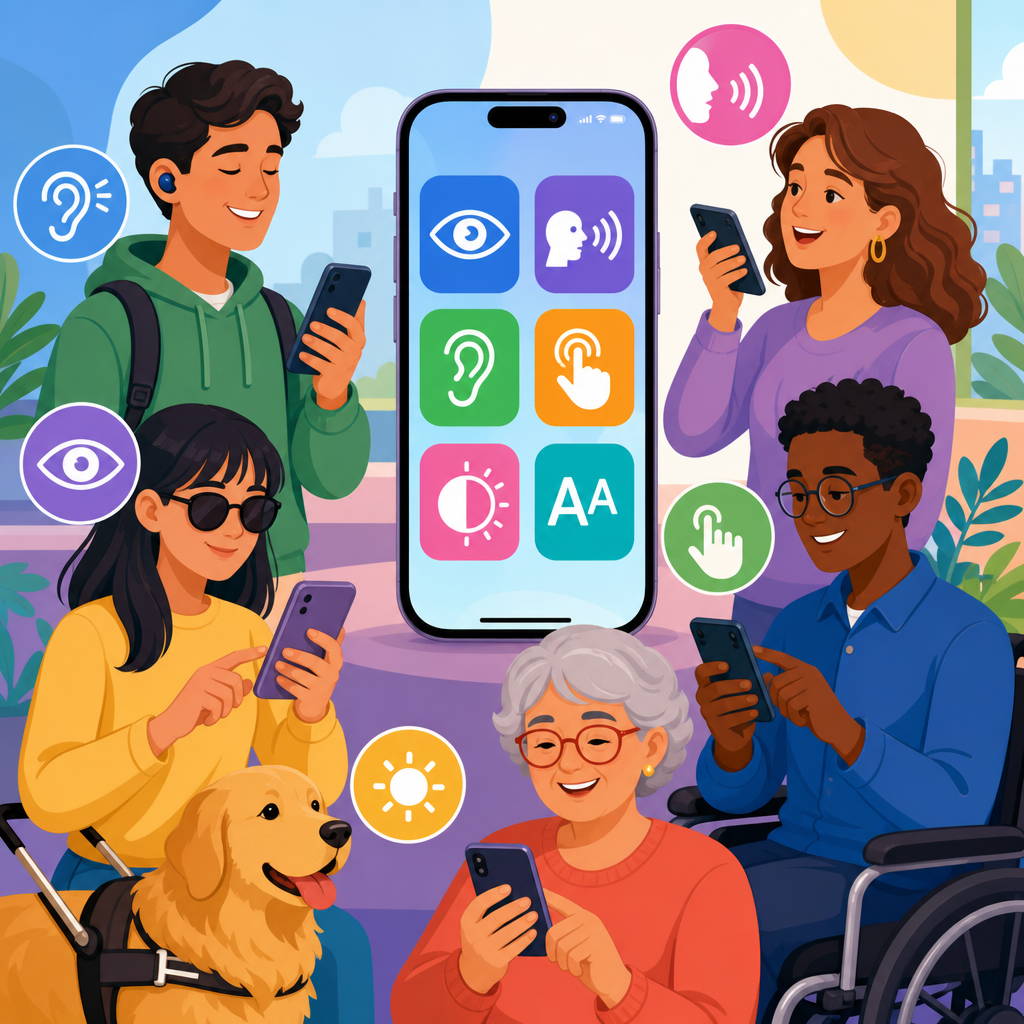
Accessibility features in modern smartphones have moved from niche settings to core design requirements, and that shift has changed how millions of people communicate, work, learn, and navigate daily life. In practical terms, smartphone accessibility means the hardware, software, and interface choices that let people with visual, hearing, mobility, speech, cognitive, or temporary impairments use a device effectively. It also includes situational barriers, such as trying to read a screen in bright sunlight, answer messages while carrying bags, or follow captions in a noisy airport. I have worked with teams testing iPhone and Android deployments for older adults, blind users, and people with motor impairments, and the same lesson appears every time: features that begin as accommodations often become mainstream usability improvements. Voice control helps someone with limited dexterity, but it also helps a parent cooking dinner. Live captions support a deaf user, but they also help anyone watching video on silent. This is why understanding the basics of technology and accessibility through smartphones matters. Phones are now primary computing devices, digital identity tools, banking terminals, navigation aids, cameras, and emergency lifelines. If accessibility fails on a smartphone, access to modern life fails with it. A strong hub article must therefore explain the essential smartphone accessibility features, how they work, who they help, and what tradeoffs users and buyers should understand before choosing a device.
Screen reader, magnification, and vision support
The most foundational accessibility features in modern smartphones are the tools that make visual information perceivable without standard sight. On iPhone, VoiceOver reads interface elements aloud and lets users navigate with gestures designed for nonvisual use. On Android, TalkBack performs the same role, with Google continuing to tighten integration across Pixel devices and major Android skins. These screen readers rely on accessible labels, semantic structure, and focus order inside apps. When app developers skip those basics, even the best phone accessibility settings cannot fully compensate. In testing, I have seen banking apps with unlabeled buttons become nearly unusable, while well-built transit apps can be operated end to end entirely through speech output.
Magnification is equally important. Both iOS and Android offer full-screen zoom, windowed magnifiers, larger text, bold text, high contrast adjustments, and display scaling. Users with low vision often combine several of these rather than relying on one setting. A common effective setup is larger system text, increased contrast, button shapes, and camera-based magnification for menus or medication labels. Apple’s Magnifier app and Android camera zoom tools are especially useful in real-world tasks because they turn the phone into an assistive optical device. Color filters, invert options, reduced transparency, and dark mode can also reduce eye strain for some users, though they are not universal solutions. The key point is that visual accessibility is not one feature; it is a layered toolkit that must adapt to different eye conditions, lighting environments, and app quality.
Captions, hearing aids, and sound awareness
For deaf and hard-of-hearing users, smartphone accessibility depends on making audio content visible, amplifiable, or replaceable with alternative signals. Closed captions and live captions are now among the most valuable built-in tools. Apple offers Live Captions in supported contexts, while Android has pushed Live Caption strongly since Android 10, automatically generating captions for media, calls in some implementations, and voice messages. Accuracy varies by accent, noise, and language support, so captions should be viewed as essential but imperfect. In practice, users often pair captions with transcription apps such as Otter or built-in recorder transcription features for meetings and lectures.
Modern smartphones also support Made for iPhone hearing devices, Bluetooth LE Audio developments, hearing aid compatibility standards, mono audio, customizable balance, flash alerts, and vibration patterns. Sound Recognition on iPhone can identify alarms, doorbells, glass breaking, or crying babies, while Android devices offer similar sound notification features through Live Transcribe and Sound Notifications. These functions matter because accessibility extends beyond media playback to environmental awareness and safety. Real-world use shows the importance of customization: one user may want amplified call audio and visual voicemail, while another prioritizes speaker separation and directional microphones for conversations in noisy spaces. Accessibility succeeds when the phone can be tuned to specific hearing profiles rather than assuming a single default solution.
Motor accessibility and hands-free control
Motor accessibility features are essential for users with tremors, limited reach, reduced grip strength, paralysis, limb difference, repetitive strain injuries, or fatigue. Smartphones now include touch accommodations, assistive gestures, dwell control, switch access, voice control, and keyboard alternatives that reduce dependence on precise tapping. Apple’s AssistiveTouch creates an on-screen control menu and supports external adaptive switches, while Voice Control allows users to open apps, dictate text, and activate numbered interface targets by speech. On Android, Switch Access, Voice Access, and accessibility shortcuts provide comparable hands-free control. Voice Access is particularly powerful because it overlays labels on actionable items, letting users say commands such as “tap send” or “scroll down.”
These features are not just for permanent disabilities. After hand surgery, during a flare of arthritis, or while wearing gloves in cold weather, mainstream users benefit from the same tools. The design principle is reduced fine-motor demand. Features like longer touch duration, ignore repeated taps, sticky keys for external keyboards, and predictive text reduce the number and precision of movements required. Accessories matter too. Styluses, phone mounts, switch interfaces, and well-designed cases can turn a frustrating device into a workable one. However, there are tradeoffs. Voice-first control can be awkward in public or unreliable in loud environments, and some gesture-heavy apps remain hard to use with switches. Buyers should therefore look beyond the feature checklist and test whether the features work consistently in the apps they use every day.
Cognitive accessibility and simpler interaction design
Cognitive accessibility is often underexplained, even though it affects a large group of users including people with dyslexia, ADHD, autism, memory impairments, traumatic brain injury, and age-related cognitive changes. On smartphones, cognitive support comes from simplifying interfaces, reducing distraction, improving readability, and giving users multiple ways to complete a task. Useful built-in settings include text-to-speech, spoken content, reading modes, focus modes, guided access, app pinning, simplified home screens, reminders, and voice assistants that handle tasks step by step. Siri, Google Assistant, and Gemini-based assistant experiences can reduce friction by turning multistep actions into plain-language requests.
In direct support work, I have found that consistency matters more than raw feature count. A cluttered home screen, noisy notifications, and unpredictable gesture patterns create cognitive load that quickly becomes exhausting. Simple changes can make a major difference: keeping only essential apps on the first screen, using widgets for medication reminders, enabling spoken typing feedback, and setting automation for recurring routines. Reading support is another critical area. Features like Speak Screen, Select to Speak, Reader modes, font adjustments, line spacing changes, and dyslexia-friendly formatting help users process text at their own pace. While no single setting makes a phone “cognitively accessible” for everyone, the best smartphones provide flexible controls that let the device match the user’s attention, memory, language, and processing needs rather than forcing the user to adapt constantly.
Built-in accessibility features that matter most
The following comparison highlights core smartphone accessibility features and why they matter in daily use. Availability varies by device model, operating system version, market, and app support, but these categories form the baseline for evaluating any modern smartphone.
| Feature category | Examples | Primary users helped | Practical benefit |
|---|---|---|---|
| Screen reading | VoiceOver, TalkBack | Blind and low-vision users | Reads interface elements, supports nonvisual navigation |
| Vision enhancement | Zoom, larger text, contrast controls, Magnifier | Low-vision users, older adults | Makes content easier to see and physical text easier to inspect |
| Captioning and transcription | Live Caption, live transcription, visual voicemail | Deaf and hard-of-hearing users | Converts speech and media audio into readable text |
| Motor support | AssistiveTouch, Switch Access, Voice Access | Users with limited dexterity or reach | Reduces need for precise touch and enables hands-free control |
| Cognitive support | Focus modes, reading tools, reminders, guided access | Users with attention, memory, or processing challenges | Simplifies tasks, reduces distraction, supports routines |
| Audio and environmental alerts | Sound Recognition, flash alerts, vibration customization | Deaf users, users in noisy settings | Provides non-audio awareness of important sounds and events |
Accessibility by design: apps, hardware, and standards
Smartphone accessibility is not only about settings menus. It depends on app design, hardware choices, and compliance with recognized standards. The Web Content Accessibility Guidelines influence mobile thinking even though native apps have their own implementation details. On Apple platforms, developers rely on UIKit and SwiftUI accessibility APIs, traits, labels, rotor actions, Dynamic Type, and VoiceOver testing. On Android, developers use accessibility labels, content descriptions, semantic roles, heading structures, focus management, and testing tools in Android Studio and Accessibility Scanner. If these foundations are missing, users encounter unlabeled controls, broken focus order, gesture traps, and unreadable text scaling.
Hardware can also determine whether software accessibility is practical. Physical button placement, speaker quality, microphone noise suppression, haptic strength, OLED brightness, refresh rate smoothness, face unlock alternatives, and compatibility with hearing aids or braille displays all matter. A phone with excellent software but weak speakers may frustrate a hard-of-hearing user. A device with aggressive curved screen edges may increase accidental touches for someone with motor impairments. In procurement work, I always advise organizations to test actual workflows, not marketing promises. Set up a call, navigate public transit directions, authorize a banking action, dictate a message, and recover from an error. Accessibility is proven in task completion, not in feature lists alone.
How to choose and use an accessible smartphone
The best accessible smartphone is the one that fits a user’s needs, habits, support system, and essential apps. Start by identifying the primary barrier: seeing the screen, hearing audio, touching accurately, speaking clearly, remembering steps, or some combination. Then test the built-in features before adding third-party tools. For a blind user, check screen reader responsiveness, braille display support, camera-based scene description, and app labeling quality. For a user with dexterity limitations, test voice control, switch compatibility, mount options, and emergency call access. For older adults, evaluate font scaling, loudness, simplified layouts, medical alert integration, and battery life. Apple and Google both provide strong accessibility foundations, but results vary depending on ecosystem familiarity and app quality.
Setup is only the beginning. Accessibility features need training, shortcuts, and periodic adjustment. Enable quick access through side-button shortcuts, accessibility menus, or control center toggles. Teach backup methods in case one feature fails, such as using both voice dictation and a larger keyboard. Revisit settings after software updates, because options move and capabilities expand. Most importantly, involve the user directly. Family members and IT teams often overconfigure devices in ways that remove autonomy. The goal is not a perfectly optimized settings page; it is confident independent use. Smartphones are now central to digital participation, and accessible smartphones make that participation possible. If you are building a technology and accessibility strategy, start with the phone, audit the tasks that matter most, and choose features that support real life rather than ideal conditions.
Frequently Asked Questions
1. What are the most essential accessibility features in modern smartphones?
The most essential accessibility features in modern smartphones are the ones that help people perceive, control, and understand the device more easily. For users with visual impairments, core features include screen readers, voice guidance, adjustable text size, bold text, high-contrast display settings, color filters, magnification tools, and zoom gestures. These tools make it possible to navigate menus, read messages, identify interface elements, and use apps with much greater independence. Features such as brightness control, dark mode, and reduced motion also matter in real-world situations, including glare outdoors or visual sensitivity indoors.
For users who are deaf or hard of hearing, smartphones now commonly offer live captions, sound recognition, hearing aid compatibility, mono audio, balance controls, vibration customization, visual alerts, and real-time transcription. These features help bridge communication gaps in calls, media playback, video chats, alarms, and everyday notifications. Accessibility is not limited to permanent disabilities either. Someone in a loud train station may rely on captions, just as someone with an ear infection may temporarily depend on transcription or amplified audio.
Mobility and dexterity features are equally important. Voice control, switch access, touch accommodations, gesture simplification, customizable keyboards, assistive touch menus, and dwell controls allow users to operate a smartphone when tapping, swiping, or holding the device is difficult. Cognitive accessibility features, such as simplified layouts, guided access, focus modes, predictable navigation, and clearer notification management, reduce confusion and make the device easier to use consistently. Together, these features reflect a major shift in smartphone design: accessibility is no longer an add-on, but a foundation of good usability for everyone.
2. How do screen readers and voice control improve smartphone accessibility?
Screen readers and voice control are two of the most powerful accessibility tools available on modern smartphones because they address different but equally important barriers. A screen reader helps users who are blind, have low vision, or struggle to read visual interfaces by reading aloud what appears on the screen. It can announce buttons, labels, notifications, incoming calls, app names, and content structure, allowing the user to move through the interface using gestures, keyboard input, or external assistive devices. Without a screen reader, many smartphone functions would remain inaccessible because a user would have no reliable way to identify what is on the display.
Voice control improves accessibility by letting users operate the phone through spoken commands instead of touch. This is especially useful for people with limited hand mobility, tremors, repetitive strain conditions, or temporary injuries. Users can open apps, dictate messages, place calls, scroll content, activate settings, and even interact with interface elements using voice alone. In many cases, voice control also supports multitasking and convenience, such as when cooking, driving with hands-free support, or carrying items. That broader usefulness is one reason accessibility features often become mainstream productivity tools.
When combined, screen readers and voice input can create a much more flexible mobile experience. A user may listen to on-screen content, respond with speech-to-text, and navigate with spoken commands rather than touch. Advances in natural language recognition, on-device processing, and AI-powered assistance have made these tools faster and more accurate than earlier generations. Still, effectiveness depends on good app design. Developers must use proper labels, logical navigation order, and accessible controls so that screen readers and voice systems can interpret the interface correctly. In that sense, these tools are only as strong as the accessibility standards behind the apps they support.
3. Why are captions, transcripts, and sound alerts so important for smartphone users?
Captions, transcripts, and sound alerts are critical because smartphones are communication devices first, and communication should not depend on a single sense. Captions allow users who are deaf or hard of hearing to follow videos, video calls, voice messages, and live events. Real-time captions are especially valuable because they provide immediate access to spoken content in conversations, streaming media, and meetings. Transcripts take that a step further by turning speech into readable text that can be reviewed, searched, saved, or shared later. This improves both accessibility and productivity.
These features also help in many everyday situations that have nothing to do with permanent hearing loss. A person in a noisy airport, a student in a quiet library, or a parent trying not to wake a sleeping child may rely on captions instead of audio. Sound recognition and visual alerts serve a related role by translating important environmental sounds into alternative signals. A smartphone can notify a user when it detects a doorbell, alarm, crying baby, siren, or knocking sound. That kind of awareness can improve independence and safety in meaningful ways.
The broader value of these tools is that they reduce the assumption that audio is always available, clear, or practical. Smartphones now support vibration patterns, flashing alerts, customizable notification channels, hearing aid integration, and audio balancing to make communication more adaptable. The best accessibility design offers multiple ways to receive the same information: through sound, text, haptics, and visuals. That redundancy is not just helpful for disabled users. It creates a more resilient and inclusive experience for everyone using the device in the real world.
4. How do accessibility features support users with mobility, speech, or cognitive challenges?
Accessibility features for mobility, speech, and cognitive challenges are designed to reduce the physical and mental effort required to use a smartphone. For people with limited dexterity or motor control, features like assistive touch, customizable gestures, larger tap targets, switch access, external keyboard support, stylus compatibility, and voice commands make navigation more manageable. Touch accommodations can ignore accidental taps, adjust hold duration, or change how gestures are recognized. These settings are especially useful for users with tremors, arthritis, cerebral palsy, paralysis, or hand injuries.
Speech-related accessibility tools help users communicate when verbal expression is difficult or inconsistent. Speech-to-text dictation can convert spoken words into written messages, while text-to-speech can read content aloud or help a user communicate through typed phrases. Some platforms also support personal voice tools, predictive text, phrase shortcuts, and AAC-related app compatibility. These features can be life-changing for people with conditions that affect speech clarity, speed, or endurance, because they help preserve communication in work, social, and emergency contexts.
Cognitive accessibility is equally important, though it often receives less attention. Features such as simplified home screens, consistent icon placement, reduced animations, reading assistance, focus modes, reminder systems, guided access, and notification controls can make smartphones less overwhelming and easier to understand. This supports users with attention differences, memory impairments, learning disabilities, brain injuries, or age-related cognitive changes. Clearer interfaces help people stay oriented, complete tasks successfully, and avoid frustration. In practice, accessibility for cognitive load often improves usability for every user by making smartphone interactions more predictable and less cluttered.
5. What should buyers look for when choosing an accessible smartphone?
When choosing an accessible smartphone, buyers should look beyond brand marketing and focus on how well the device supports real, everyday needs. Start with the built-in accessibility menu and review whether the phone offers a complete set of options for vision, hearing, mobility, speech, and cognitive support. Important features include screen reader quality, magnification, text scaling, color and contrast adjustments, voice control, live captions, hearing aid support, switch access, guided access, and strong speech-to-text tools. A device that handles these functions well out of the box will usually provide a better long-term experience than one that relies heavily on third-party workarounds.
It is also important to evaluate the hardware itself. Screen size, brightness, speaker clarity, microphone quality, haptic feedback strength, button placement, biometric unlocking options, and battery life can all affect accessibility. For example, a brighter display may help in glare-heavy environments, while reliable face unlock or fingerprint unlock can reduce the need for complex passcodes. Buyers should also consider whether the operating system receives regular updates, because accessibility improvements are often delivered through software updates rather than hardware changes alone.
Finally, compatibility matters. An accessible smartphone should work well with hearing aids, braille displays, external keyboards, switches, AAC apps, and other assistive technologies a user may already depend on. App ecosystem quality is another major factor, since even the best operating system cannot guarantee accessibility if key apps are poorly designed. If possible, buyers should test devices in person, using the exact accessibility settings they expect to rely on most. The right choice is not simply the newest or most expensive phone. It is the one that delivers consistent, flexible, and comfortable access to communication, information, and daily tasks.