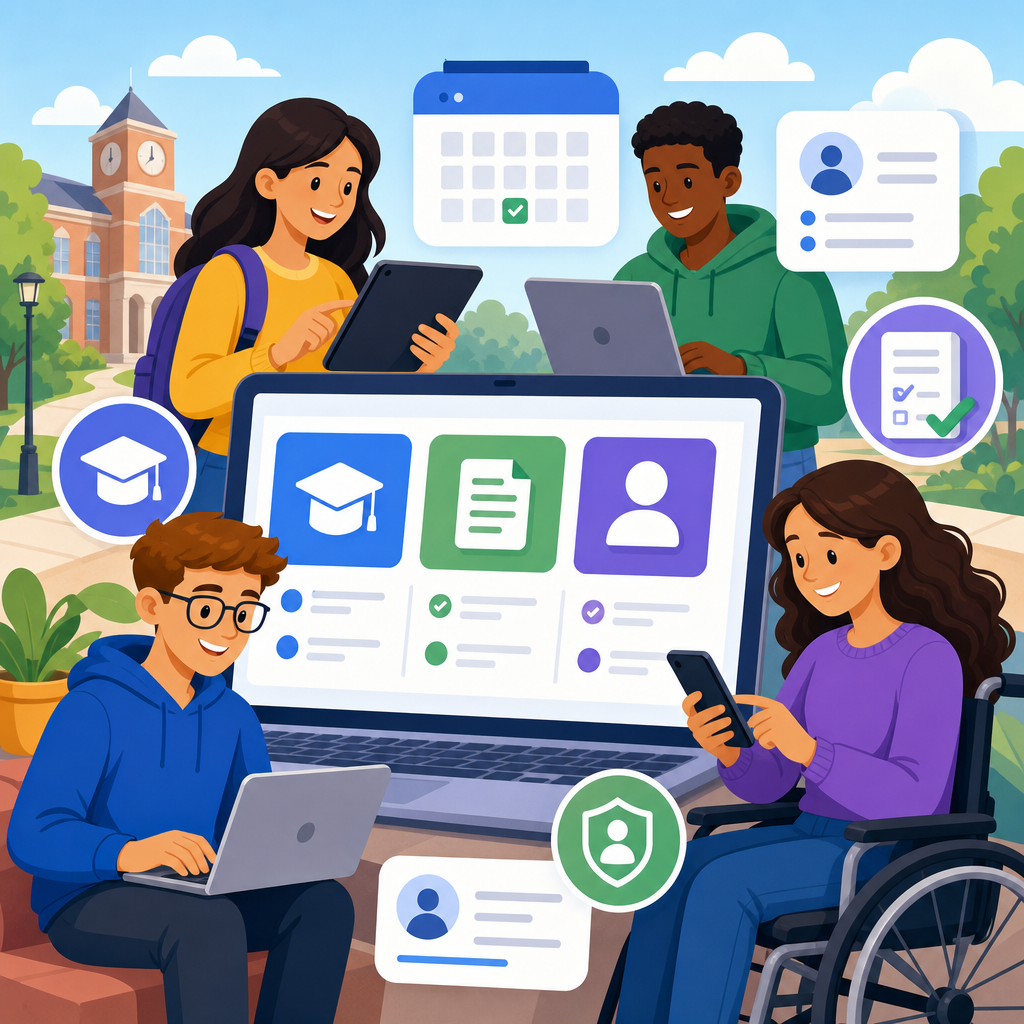
Accessible course registration, forms, and student portals are the backbone of an inclusive education experience because they determine whether students can enroll, submit required information, manage schedules, and participate independently in campus life. In practical terms, accessibility means digital systems work for people with disabilities, including students who use screen readers, keyboard navigation, captions, voice input, screen magnifiers, switch devices, or alternative color settings. In higher education and K–12 settings alike, these systems are not peripheral tools. They are mission-critical pathways to admission, financial aid, advising, orientation, attendance, payment, and academic progress.
I have worked on accessibility reviews for registrar workflows, learning platforms, and student service portals, and the same pattern appears repeatedly: institutions may invest heavily in instruction and support, yet basic administrative tasks remain harder than they should be. A student can understand degree requirements but still struggle to add a class because the registration grid is unreadable to assistive technology. Another can complete coursework successfully but hit barriers in immunization forms, housing applications, or identity verification steps. When these moments fail, the consequence is not minor inconvenience. It can mean missed deadlines, delayed enrollment, compliance exposure, and avoidable inequity.
For education organizations, this topic matters for legal, operational, and reputational reasons. In the United States, Title II of the ADA, Section 504 of the Rehabilitation Act, and, for many institutions, Section 508 expectations shape accessibility obligations. WCAG 2.1 Level AA remains the most common benchmark used in procurement, audits, and remediation plans. Beyond compliance, accessible student portals improve completion rates for everyone by reducing friction. Clear labels, predictable navigation, helpful error handling, and mobile-friendly layouts benefit students using phones on public transit as much as those using screen readers in a lab. This hub explains how to make course registration, forms, and student portals accessible across the education sector.
Why accessibility in education systems requires a workflow view
Accessible education technology is not just a page-by-page design problem. It is a workflow problem spanning admissions, registration, bursar services, advising, and records. A student journey often crosses multiple vendors: a public website, single sign-on provider, student information system, payment gateway, document uploader, and appointment scheduler. Each handoff introduces risk. I have seen institutions fix a homepage menu while leaving the actual add-drop process inaccessible because the issue lived inside a third-party widget embedded after login.
The most effective approach is mapping the full path for high-priority tasks: apply, upload documents, register, join a waitlist, request accommodations, pay tuition, and withdraw. For each path, test with keyboard-only navigation, screen readers such as JAWS, NVDA, and VoiceOver, zoom up to 200 percent, reflow on mobile widths, and error recovery. Accessibility breaks often appear in dynamic steps like modal dialogs, CAPTCHA challenges, timeout warnings, and status messages that are not announced to assistive technology. When a student cannot tell whether a class was added successfully, the transaction is functionally broken.
This hub supports a broader education accessibility program because registration, forms, and portals connect to other key topics. Course catalogs, academic calendars, financial aid pages, campus maps, library systems, and learning management systems all feed into portal use. Internal teams should treat this page as the central guide, then build supporting standards for procurement, design systems, content governance, PDF remediation, multimedia, and testing routines. Accessibility succeeds in education when institutions stop treating digital barriers as isolated bugs and start managing them as service delivery risks.
Accessible course registration: the critical enrollment transaction
Course registration is one of the highest-stakes digital transactions in education. Students must search classes, compare sections, review prerequisites, resolve holds, understand seat availability, and submit changes under time pressure. If the interface fails, students can lose required courses, fall behind in degree progress, or pay for unnecessary terms. Accessible course registration therefore depends on both technical conformance and usable information architecture.
Search and filtering must expose labels that assistive technology can interpret clearly. Fields such as subject, term, modality, instructor, campus, and credit hours should have explicit programmatic labels, not placeholder text acting as labels. Results should announce changes when filters update asynchronously. Tables listing classes need proper header associations so a screen reader user can understand whether a number refers to seats, waitlist count, credits, or meeting times. If institutions use color to distinguish open, closed, and waitlisted sections, they must add text labels or icons with accessible names.
Registration planning tools also need careful review. Degree audit integrations may display recommended courses in drag-and-drop planners that are difficult to use without a mouse. A better model provides an equivalent keyboard path with buttons such as “add to plan” and “move term.” Time conflict messages should identify the conflicting courses by name and section, not display generic red text. Prerequisite errors should explain the exact requirement missing. In one registrar project, replacing “registration failed” with a specific message about a required lab corequisite reduced support calls and helped all students complete the task faster.
| Registration component | Common accessibility failure | Practical fix |
|---|---|---|
| Course search filters | Placeholder-only labels and unlabeled reset buttons | Use persistent labels, accessible names, and clear button text |
| Class results table | Screen readers cannot map data cells to headers | Use proper table markup and concise column headers |
| Seat availability status | Color-only indicators for open or closed classes | Add visible text and status announcements |
| Waitlist and error messages | Dynamic updates not announced after submission | Use live regions and move focus to confirmation or error summary |
| Weekly schedule grid | Complex visual timetable unusable by keyboard or screen reader | Provide an equivalent list view with day, time, location, and instructor |
Mobile registration deserves equal attention. Many students register on phones, especially community college and commuter populations. Responsive layouts should preserve labels, reading order, and operable controls without horizontal scrolling at common viewport widths. Touch targets must be large enough, but that alone is not enough. Focus order, heading structure, and error summaries must still work with screen readers on iOS and Android. If registration requires timed inactivity logouts, provide warnings that can be perceived and extended. Otherwise, a student using voice input or a screen reader may lose progress before completing enrollment.
Accessible forms: admissions, financial aid, health, and student services
Forms are where accessibility failures become administrative barriers. Education institutions rely on forms for admissions, disability documentation, scholarship applications, residency status, FERPA requests, counseling intake, immunization compliance, internship approvals, and graduation checks. Every field, instruction, upload control, and signature step must be understandable and operable. The standard principles are clear: use explicit labels, associate instructions programmatically, group related controls with fieldsets and legends, identify required fields consistently, and provide error messages that describe how to fix the issue.
In practice, the biggest failures are often avoidable. I frequently see forms that clear data after one validation error, document uploaders that cannot be reached by keyboard, and date pickers that force a mouse. These are severe usability defects. A student applying for emergency aid should not need to restart because one field lacked the correct format. Inline validation can help, but only if it is exposed to assistive technology and not color-dependent. Error summaries at the top of the page should link directly to the fields that need correction, which is especially important for long multi-step forms.
File requirements create another challenge. If a portal demands PDFs, scans, or image uploads, instructions must specify accepted formats, size limits, naming rules, and deadlines in plain language before submission. Better still, provide alternatives when students cannot easily create the required format. For signatures, e-signature tools must support keyboard use and screen readers; forcing users to draw a signature in a canvas without an accessible alternative is not acceptable. Temporary save-and-return features are also essential because many student service forms require gathering information over time. Losing data disproportionately affects users with cognitive disabilities, limited stamina, or assistive technology workflows.
Institutions should also review the accessibility of downloadable forms and generated documents. A polished web form can still lead to an inaccessible PDF confirmation, award letter, or policy acknowledgment. Tagged PDFs, logical reading order, proper headings, alt text, and usable form fields remain necessary when documents are part of the process. Where possible, use native accessible web forms instead of PDFs for high-volume student tasks. This reduces both remediation costs and completion friction.
Student portals: navigation, personalization, alerts, and account tasks
The student portal is usually the front door to digital campus life. It aggregates registration, holds, tuition balances, messaging, advising, identity management, records, and institutional announcements. Accessibility here depends on consistency. Students should encounter stable navigation, meaningful page titles, descriptive headings, visible focus indicators, and predictable layouts across modules. If every card, menu, and dashboard widget behaves differently, users spend energy learning the interface instead of completing tasks.
Portal dashboards often fail because they prioritize visual density over comprehension. A crowded home screen full of cards, icons, and rotating notices may look efficient, but it can be overwhelming for screen reader users, students with attention-related disabilities, and anyone using a small screen. Strong portals let students customize what appears first, collapse nonessential widgets, and jump directly to common actions such as “register for classes,” “pay bill,” “view holds,” or “contact advisor.” Skip links, landmark regions, and a sensible heading structure make these pages dramatically easier to use.
Alerts and notifications need special care. Holds, payment deadlines, missing documents, and registration appointment times are critical notices. They should not appear only as color badges or auto-dismissing toasts. Important alerts must be persistent, text-based, and accessible after login. If a system sends email or SMS reminders, make sure the portal itself contains the same information in an accessible format because students manage communication preferences differently. Account security steps such as multifactor authentication should also be tested carefully. Authentication apps, one-time passcodes, and recovery flows can create barriers if labels are poor or time limits are too short.
Personalization features can improve accessibility when implemented thoughtfully. High-contrast themes, font scaling support, language options, and dashboard preferences help students tailor the system to their needs. However, accessibility cannot depend on optional settings alone. The default experience must already meet accepted standards. A portal is successful when essential tasks work out of the box with keyboard navigation, assistive technology, and responsive layouts, while personalization adds comfort rather than compensating for defects.
Procurement, testing, and governance for education teams
Most education organizations rely on vendors for student information systems, portal platforms, scheduling tools, and digital forms. That makes procurement a core accessibility function. Before renewal or purchase, require a current VPAT based on the relevant accessibility standard, but do not stop there. A VPAT is a self-reported document, not proof of usable accessibility. Institutions should request test accounts, evaluate critical user journeys, and include accessibility requirements in contracts, statements of work, and remediation timelines. Named support contacts and issue escalation paths matter because registration problems often occur on fixed academic deadlines.
Testing should combine automated scanning with manual evaluation. Tools like axe DevTools, WAVE, and Lighthouse help identify obvious issues such as missing labels or low contrast, but they cannot judge workflow clarity, focus management, or whether a schedule grid makes sense through a screen reader. Manual testing with NVDA, JAWS, VoiceOver, keyboard-only use, zoom, and mobile screen readers is essential. Usability sessions with disabled students are even more valuable because they reveal friction points that technical checklists miss. In my experience, a one-hour task-based session around add-drop and tuition payment can expose months of hidden assumptions.
Governance keeps improvements from eroding. Registrar offices, IT, disability services, procurement, marketing, and academic departments should share ownership because content and transactions cross boundaries. Publish standards for headings, links, document uploads, error messages, and third-party integrations. Maintain an issue log with severity ratings tied to student impact and deadline risk. Train content editors and service owners, not just developers. When teams understand why accessible forms and portals reduce support tickets, abandoned transactions, and compliance risk, accessibility becomes an operational requirement rather than a side project.
Building an education accessibility hub that supports every subtopic
As a hub article for education, this page should guide readers toward the full ecosystem of related accessibility work. Course registration, forms, and student portals sit at the center, but institutions also need deeper guidance for online admissions, financial aid content, event registration, campus wayfinding, library search, student employment applications, and digital classrooms. Each of those areas intersects with the same principles discussed here: perceivable content, operable controls, understandable workflows, robust compatibility, and sustainable governance.
A strong education accessibility program starts with high-impact transactions, documents requirements in plain language, and measures outcomes. Track completion rates, support contacts, common error types, remediation backlog, and vendor responsiveness. Use those findings to prioritize future articles and implementation guides across the education subtopic. When teams improve registration, forms, and portals first, they remove barriers at the moments students feel most pressure. That is the practical benefit: students can act independently, institutions reduce preventable failures, and digital services better reflect the educational mission.
If you manage education websites or student systems, audit the top five student tasks this term and fix the barriers that stop completion. Start with registration, required forms, and portal alerts, then expand outward to the rest of your education accessibility roadmap.
Frequently Asked Questions
What does accessibility mean for course registration systems, online forms, and student portals?
Accessibility in course registration systems, forms, and student portals means that every student can complete essential academic tasks without unnecessary barriers, regardless of disability. In practice, that includes being able to search for classes, add or drop courses, fill out financial aid or housing forms, review holds, check grades, upload documents, and manage schedules using a wide range of assistive technologies and interaction methods. A truly accessible system works well with screen readers, keyboard-only navigation, screen magnifiers, voice input software, refreshable Braille displays, captions, high contrast settings, and mobile accessibility features built into phones and tablets.
Accessibility also depends on sound design and coding practices. Form fields should have clear labels, instructions should be easy to understand, error messages should identify exactly what went wrong, and time-sensitive actions should provide warnings or extensions when possible. Navigation should be consistent, buttons should be properly named, and content should not rely only on color, shape, or hover behavior to communicate meaning. For example, if a student misses a required field during registration, the system should announce the problem clearly and move them to the field that needs attention rather than leaving them to guess what happened.
Just as important, accessibility is not only a technical checklist. It is a core part of equitable student experience. If a student cannot independently register for classes, submit a required immunization form, or read a billing notice because the portal is inaccessible, that student is immediately placed at a disadvantage. Accessible digital systems support independence, privacy, and timely participation in campus life, which is why they are considered foundational to inclusion in higher education.
Why are accessible registration and student portal experiences so important for colleges and universities?
Accessible registration and portal experiences matter because they affect nearly every stage of a student’s academic journey. These systems are often the main gateway to enrollment, advising, scheduling, records, payments, accommodations, and institutional communication. If students encounter barriers in these tools, the impact goes far beyond inconvenience. It can delay enrollment, prevent access to services, create confusion about deadlines, and increase reliance on staff for tasks that should be simple and private. For students with disabilities, inaccessible systems can turn routine administrative steps into repeated obstacles.
There is also a strong legal and policy dimension. Colleges and universities are generally expected to provide equal access to digital services under disability rights laws and accessibility standards. While specific obligations vary by institution type and location, the broader expectation is consistent: students should be able to use educational technology and institutional systems in a way that is comparable, timely, and effective. Failing to address accessibility can lead to complaints, reputational harm, remediation costs, and unnecessary administrative burden.
Beyond compliance, accessible systems improve the experience for everyone. Clear labels, better navigation, readable layouts, mobile-friendly forms, and straightforward error handling help all users, not only those with documented disabilities. Students may be using a phone in a noisy environment, recovering from an injury, dealing with temporary vision changes, or navigating a portal in a second language. Accessibility strengthens usability, reduces support requests, and creates a more dependable digital campus experience overall.
What are the most common accessibility barriers found in course registration forms and student portals?
Some of the most common accessibility barriers appear in forms, navigation menus, pop-ups, and dynamic scheduling tools. Poorly labeled form fields are a frequent problem, especially when visual placeholders are used instead of proper labels. Screen reader users may hear vague or incomplete information, making it difficult to know what to enter. Another common issue is keyboard inaccessibility, where students cannot tab through the page in a logical order, activate dropdown menus, select calendar dates, or submit forms without a mouse. This is especially problematic in registration environments with complex filters, modal windows, and interactive grids.
Error handling is another major area of concern. Inaccessible systems may display error messages only in color, place them far from the relevant field, or fail to announce them to assistive technology. A student may submit a form and receive no usable explanation of what needs to be fixed. Time limits can also create barriers, such as when a portal logs students out too quickly during multi-step registration or document submission processes. If the session expires without warning or without a way to extend time, students can lose progress and miss important deadlines.
Additional barriers include low color contrast, missing alt text for informative images or icons, heading structures that do not support screen reader navigation, inaccessible PDFs linked from the portal, unlabeled buttons, and status messages that are not programmatically exposed. Even small design choices can have a large impact. For instance, if course availability is indicated only with colored dots and no text label, students who are color blind or using screen readers may not understand whether a class is open, waitlisted, or closed. These problems are common, but they are also highly solvable when accessibility is built into design, development, testing, and procurement processes.
How can institutions make online forms and student portals more accessible?
Improving accessibility starts with designing and building systems that follow recognized accessibility standards from the beginning rather than treating accessibility as a final review step. Institutions should use semantic HTML, clear heading structures, properly associated form labels, descriptive link text, accessible error messaging, and fully keyboard-operable components. Interactive features such as dropdowns, tabs, dialogs, date pickers, and auto-complete tools should be tested to ensure they work with screen readers and keyboard navigation. Developers should also make sure status updates, such as confirmation messages or registration conflicts, are announced properly to assistive technologies.
Content strategy matters just as much as code. Instructions should be specific, concise, and easy to understand. Required fields should be identified in more than one way, and help text should be available before students make mistakes, not only after submission fails. Documents linked through the portal, such as add-drop forms, billing statements, or policy guides, should be accessible as well. If the portal itself is accessible but all the attached forms are scanned PDFs with no text recognition or reading order, the student experience is still broken.
Institutions should also adopt a continuous testing process. Automated scans can identify certain issues quickly, but they are not enough on their own. Manual keyboard testing, screen reader testing, zoom testing, color contrast review, and user testing with people with disabilities are all important. Procurement teams should evaluate third-party registration platforms and form tools before purchase, and accessibility requirements should be written into contracts. Finally, institutions need a clear reporting pathway so students can flag barriers and receive prompt support while long-term fixes are being made. Accessibility improves most effectively when it is treated as a shared institutional responsibility across IT, enrollment, registrar, disability services, procurement, and communications teams.
How does an accessible student portal support independence, privacy, and academic success?
An accessible student portal supports independence by allowing students to complete essential tasks on their own schedule, using the tools and technologies that work best for them. That means a student can register for classes, review degree progress, pay a bill, complete a waiver form, or upload documentation without needing another person to interpret the interface, click through inaccessible controls, or read visual-only instructions. Independence matters because students should be able to manage their academic lives without avoidable dependency created by poor digital design.
Privacy is closely connected to accessibility. Many portal tasks involve sensitive information, including disability documentation, financial records, academic standing, medical compliance forms, and personal identification details. If a student cannot access these processes independently, they may have to disclose private information to a family member, peer, or staff member just to complete a routine transaction. An accessible system helps preserve confidentiality by making self-service truly usable, which is especially important in areas tied to accommodations, health records, and financial aid.
Academic success is also directly affected. When students can access deadlines, alerts, schedules, assignment systems, advising notes, and enrollment tools without barriers, they are better positioned to stay organized and engaged. Accessible portals reduce friction during high-stakes moments such as registration windows, withdrawal deadlines, tuition payment periods, and document submission requirements. They also help students focus energy on learning rather than troubleshooting. In that sense, accessibility is not a niche feature. It is part of the infrastructure that supports retention, participation, and equal opportunity throughout the student experience.