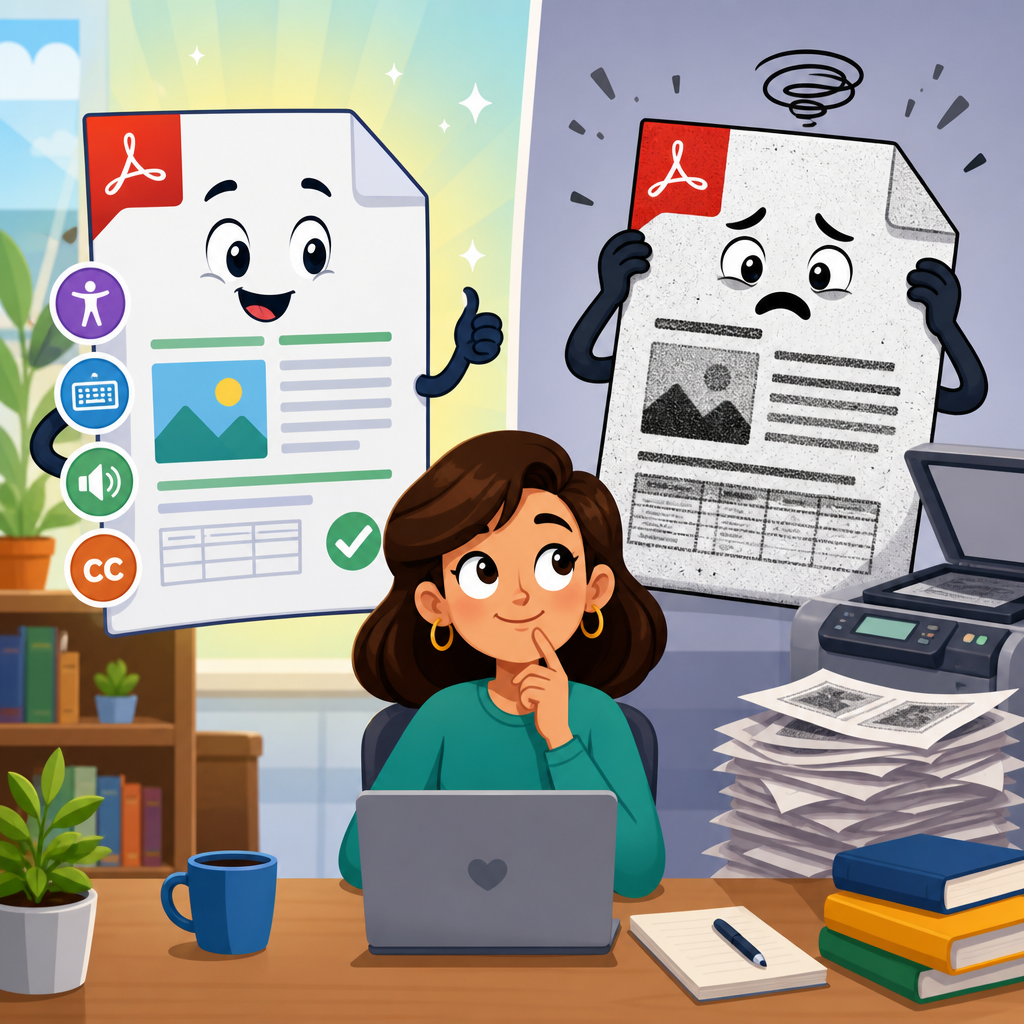
Accessible PDFs and scanned PDFs may look similar on screen, but they behave very differently for readers, search systems, and assistive technology. In day-to-day document remediation work, I see organizations assume that any PDF is automatically usable because it opens on a phone or laptop. That assumption causes real access barriers. A text-based, properly structured PDF can be navigated by screen readers, searched instantly, reflowed on small screens, and copied accurately. A scanned PDF is usually just a picture of a page, often missing machine-readable text, semantic structure, and keyboard-friendly navigation. Understanding that distinction is the starting point for anyone exploring the basics of technology and accessibility.
Technology and accessibility is the practice of designing digital tools, files, websites, software, and workflows so people with disabilities can use them effectively. In documents, that means making content perceivable, operable, understandable, and robust across devices and assistive technologies. For PDFs specifically, accessibility depends on several technical elements: optical character recognition for scanned pages, a correct reading order, heading structure, alt text for meaningful images, bookmarks for long files, table markup, form labels, color contrast, and descriptive link text. Standards such as WCAG, PDF/UA, and Section 508 shape how teams evaluate success. If your organization publishes reports, forms, brochures, manuals, or public notices, these concepts matter immediately.
This topic matters because PDFs remain one of the most common formats in government, education, healthcare, legal services, finance, and enterprise communications. They are used for annual reports, onboarding packets, invoices, research summaries, academic articles, policy updates, and application forms. When those files are inaccessible, people encounter preventable friction: a blind user cannot read a scanned benefits letter, a keyboard-only user cannot complete an unlabeled form, a low-vision reader cannot reflow dense text on mobile, and a dyslexic student cannot use text-to-speech on an image-only handout. Accessibility is not an extra layer added after publication. It is a quality requirement that improves usability, compliance, searchability, and content lifespan across the entire technology stack.
As a hub article within Technology and Accessibility, this primer connects document accessibility to broader digital practice. The same principles that make a PDF accessible also improve websites, learning platforms, knowledge bases, and mobile apps: semantic structure, readable text, meaningful navigation, device compatibility, and inclusive design choices. Teams that learn to tell an accessible PDF from a scanned PDF develop a practical lens for evaluating all digital content. They start asking the right questions: Can software interpret this content? Can a person navigate it without a mouse? Does structure survive format changes? Can assistive technology announce it correctly? Those questions form the baseline for stronger accessibility work everywhere.
What makes an accessible PDF different from a scanned PDF
An accessible PDF contains real text plus structural information that software can interpret. At minimum, the file should expose selectable text, a logical reading order, document language, headings, lists, tables, link annotations, and tags that communicate meaning beyond appearance. In Adobe Acrobat Pro, PAC, CommonLook, and screen readers such as JAWS, NVDA, or VoiceOver, that structure determines whether users can move efficiently through the file. A scanned PDF, by contrast, often starts as a flat image captured by a copier or camera. Even if the page looks crisp, assistive technology may detect nothing useful unless OCR has been applied and the resulting text has been checked for accuracy and structure.
The fastest test is simple. Try selecting text with your cursor. If selection behaves like text and a search finds words on the page, the file likely contains machine-readable content. If selection drags a rectangle over the whole page or search returns no results, you are probably dealing with an image-only scan. That said, searchable text alone does not make a PDF accessible. I often audit files that have OCR text hidden behind page images but no meaningful tags, no heading hierarchy, and a reading order that jumps from footer to sidebar to body copy. Those files are better than pure scans, but they are still frustrating for many users.
Accessible PDFs support several user needs at once. Screen reader users rely on tags and reading order. Keyboard users rely on interactive elements that receive focus predictably. Low-vision readers benefit from zoom, reflow, contrast, and clear typography. Users with cognitive disabilities benefit from plain language, headings, lists, and consistent layout. Mobile users benefit from files that are searchable and adaptable instead of frozen into oversized images. This is why document accessibility belongs within the larger conversation about technology and accessibility. It is not only about one disability group or one tool. It is about making information usable in real operating conditions.
Core accessibility features every PDF should include
The most reliable accessible PDFs begin as accessible source documents in Word, Google Docs, or InDesign. If the source uses built-in headings, real lists, descriptive links, sufficient color contrast, and properly created tables, the exported PDF has a far better chance of retaining usable structure. Retrofitting a bad source file is possible, but it takes more time and introduces more room for error. In practice, document teams save the most effort by building accessibility upstream, then validating downstream in the final PDF. That workflow mirrors good software development: fix issues at the source rather than patching symptoms after release.
Below is a practical comparison I use when training teams to distinguish baseline features quickly.
| Feature | Accessible PDF | Scanned PDF | Why It Matters |
|---|---|---|---|
| Text | Selectable, searchable text | Usually image only | Supports screen readers, find-in-document, copy and paste |
| Tags | Headings, paragraphs, lists, tables identified | Usually absent | Communicates structure to assistive technology |
| Reading order | Logical and testable | Visual only | Prevents confusing announcement order |
| Images | Meaningful images have alt text | Entire page is one image | Conveys non-text content appropriately |
| Forms | Fields labeled and keyboard accessible | Printed fields on image | Allows completion without sight or mouse |
| Navigation | Bookmarks, headings, links | Minimal or none | Speeds movement through long documents |
In addition to those basics, strong PDFs include a declared document title and language, meaningful hyperlink text, table headers associated with data cells, artifact tagging for decorative elements, and sensible tab order for forms. Long reports should include bookmarks. Complex figures may require surrounding explanation or longer descriptions outside the image itself. Compliance checkers can flag many issues, but they do not replace manual review. Acrobat’s Accessibility Checker, PAC 2024, and axesPDF can identify missing tags, contrast concerns in some contexts, or absent titles, yet only a human can confirm whether a heading hierarchy makes sense or whether alt text is useful.
One common misunderstanding is that exporting to PDF from Microsoft Word automatically guarantees accessibility. It helps, but only if the Word file was designed correctly. Another misconception is that OCR fixes everything. OCR converts image text into machine-readable text, but it can misread characters, split columns incorrectly, ignore footnotes, and produce nonsense when scans are faint or skewed. After OCR, someone still needs to inspect tagging, reading order, tables, and language settings. Accuracy matters because even small OCR errors can change meaning in legal, medical, financial, or instructional documents.
How scanned PDFs create barriers in real-world settings
Scanned PDFs create access problems because they preserve appearance while stripping away usable structure. In a public agency context, I have seen permit instructions posted as scans of photocopies with handwritten annotations. Sighted staff could decipher them after some effort, but a screen reader announced nothing useful. In education, scanned course packets often block students who rely on text-to-speech, highlighting tools, or translation software. In healthcare, a scanned intake packet can force patients to print, handwrite, rescan, and email forms that should have been digital and labeled from the start. These are not edge cases. They happen every day because scanning feels quick at the point of creation.
Barriers extend beyond disability access. Scanned PDFs are harder to search internally, harder to index accurately, larger in file size, and often worse on mobile connections. They can also undermine records management because copied text may be unavailable for discovery, analytics, or metadata enrichment. For multilingual organizations, image-only files cannot be translated cleanly by standard tools. For content teams, updating one paragraph in a scan may require recreating and rescanning an entire packet. Accessible, text-based PDFs are simply more durable assets. They support inclusion, but they also support operations, governance, and long-term reuse.
There are situations where scanning is unavoidable, such as archiving signed historical records or processing paper receipts. Even then, the answer is not to stop at scanning. Use high-quality OCR, verify text accuracy, add tags where possible, provide a separate accessible HTML or Word version when remediation is impractical, and avoid using scanned PDFs for primary public-facing content if a native digital source exists. This balanced approach matters because accessibility work often involves constraints. The goal is not perfection at any cost. The goal is to remove barriers systematically, starting with the documents people need most.
How to create, test, and maintain accessible PDFs
The best process starts before export. Use heading styles instead of manually enlarged text. Create real bulleted and numbered lists. Keep table structures simple, with designated header rows and no merged cells unless absolutely necessary. Write descriptive alt text for meaningful images and mark decorative images as decorative in the source when supported. Use descriptive link text instead of pasting raw URLs. Set document language. Check color contrast and avoid conveying meaning by color alone. In forms, ensure every field has a visible label and a programmatic name. These practices improve both the source file and the final PDF.
After export, test the PDF in layers. First, run an automated checker in Acrobat Pro or PAC. Second, inspect the tag tree and reading order manually. Third, test keyboard navigation, including links, bookmarks, and form fields. Fourth, verify that headings are nested logically and that tables announce headers correctly. Fifth, spot-check with a screen reader, even if only for key tasks like reading the title, jumping by heading, completing a form, and activating links. Finally, confirm the document properties include a title and language. This sequence catches the majority of issues before publication and creates a repeatable quality-control workflow for teams.
Maintenance matters because documents evolve. A compliant PDF can become inaccessible when someone appends scanned pages, edits a source without preserving styles, or republishes a form through a different export path. Build governance around templates, training, review checklists, and ownership. I recommend maintaining approved document templates, naming a remediation lead, tracking high-traffic assets, and setting a policy that public uploads must be searchable text at minimum. For hub content under Technology and Accessibility, this operational view is essential. Accessibility is not a one-time conversion project. It is an ongoing content practice tied to publishing systems, procurement choices, and staff habits.
Where accessible PDFs fit within technology and accessibility strategy
Accessible PDFs are one part of a broader digital accessibility program. They intersect with website navigation, content design, document management systems, procurement, and support workflows. For example, if your site search surfaces PDFs prominently, those files effectively function like web pages and should meet the same usability expectations. If your organization emails bills or benefits notices, document accessibility becomes a customer service issue, not just a compliance issue. If your LMS hosts lecture slides and readings as PDFs, educational access depends on the file format as much as on the platform itself. This is why a hub on exploring the basics of technology and accessibility should treat documents as foundational.
Teams building maturity usually move through four stages. First, they learn to identify risky content, especially scans and broken forms. Second, they fix source-document practices and templates. Third, they standardize testing with tools and manual review. Fourth, they integrate accessibility into procurement, governance, and publishing workflows. Each stage reduces rework and improves consistency. The main benefit is straightforward: accessible documents reach more people with less friction. If you manage any digital content, audit your PDFs this week, replace avoidable scans, and make accessibility part of how your organization publishes information every day.
Frequently Asked Questions
1. What is the difference between an accessible PDF and a scanned PDF?
An accessible PDF contains real text and a meaningful document structure behind what you see on the page. That means headings are identified as headings, lists are marked as lists, tables are built as tables, images can include alternative text, and the reading order is defined so assistive technology can present the content in a logical way. In practical terms, an accessible PDF is designed to function as a document, not just appear like one. Screen readers can navigate it, users can search for words instantly, text can often reflow more effectively on smaller screens, and copying and pasting usually preserves the intended wording.
A scanned PDF, by contrast, is often just a photograph of a page saved inside a PDF file. It may look perfectly readable to a sighted person, but the document frequently has no usable text layer, no semantic structure, and no reliable reading order. To a screen reader, that kind of file may be silent, confusing, or reduced to a single unlabeled image. Even when optical character recognition, or OCR, has been applied, the result may still be incomplete or poorly structured unless the document has also been tagged and checked for accessibility. That is why two PDFs that look almost identical on screen can offer completely different experiences for readers, search systems, and people using assistive technology.
2. Why are scanned PDFs such a problem for accessibility and usability?
The main issue is that a scanned PDF usually prioritizes appearance over function. If a document exists only as an image, users cannot reliably search its contents, select text, copy information, or navigate it with a keyboard or screen reader. Someone using text-to-speech software may hear nothing useful at all because there is no true text for the software to interpret. A person with low vision may struggle as well, because zooming into an image-based page can make the content blurrier, harder to track, or more difficult to reflow on a small display.
Scanned PDFs also create problems beyond disability access. Search engines have less usable information to index when text is missing or inaccurate. Employees cannot quickly find terms in long reports. Mobile users may need to pinch and zoom line by line instead of reading comfortably. If OCR is applied badly, the extracted text may contain spelling errors, missing characters, merged columns, or broken headings, which can affect legal, educational, medical, or archival records. In real-world remediation work, this is where organizations get tripped up: the file opens, so they assume it works. But opening is not the same as being readable, navigable, searchable, or accessible.
3. Does OCR automatically make a scanned PDF accessible?
No. OCR is helpful, but it is not the same thing as accessibility. OCR can convert the visible shapes of letters in a scan into machine-readable text, which is an important first step. Once that text layer exists, users may be able to search the document, copy passages, and in some cases have content read aloud. However, OCR alone does not usually create a fully accessible PDF. It does not reliably establish proper heading levels, list semantics, table relationships, logical reading order, descriptive link text, form field labels, or meaningful alternative text for images and figures.
OCR accuracy also varies depending on the quality of the original scan. Crooked pages, handwritten notes, low contrast, stamps, smudges, old typefaces, and multi-column layouts can all produce serious recognition errors. A screen reader may read nonsense where a sighted user sees a perfectly normal page image. To make a scanned document truly accessible, it typically needs several additional steps after OCR: quality review of the recognized text, creation or repair of tags, verification of reading order, identification of headings and lists, proper treatment of tables, and testing with accessibility tools and, ideally, assistive technology. OCR improves a scanned PDF, but it does not finish the job.
4. How can I tell whether a PDF is actually accessible or just looks fine on screen?
A quick visual check is not enough, because inaccessible PDFs often look completely normal. Start with a few practical tests. Try selecting individual words with your cursor. If you cannot highlight text and the entire page behaves like one big image, that is a warning sign. Next, use the search function to look for a unique word you can see on the page. If the PDF cannot find it, the file may lack a usable text layer. You can also try copying a sentence and pasting it into a text editor. If the result is blank, garbled, or out of order, the file likely has underlying accessibility issues.
For a stronger evaluation, check whether the PDF has tags and whether those tags reflect real structure. Accessibility checkers in tools like Adobe Acrobat can help identify missing tags, absent document titles, reading order problems, low contrast in some cases, and other common issues. But automated checkers are only part of the picture. A document can pass some automated checks and still be difficult to use with a screen reader if the heading hierarchy is sloppy, tables are tagged incorrectly, or decorative elements interrupt the reading flow. The most reliable approach combines tool-based inspection with human review: verify searchability, inspect the tag tree, confirm keyboard navigation where relevant, and test how the content is announced by assistive technology. If the document is easy to navigate without relying purely on sight, you are much closer to true accessibility.
5. What is the best way to convert scanned PDFs into accessible PDFs?
The best approach depends on the document’s importance, complexity, and expected lifespan, but in general, remediation works best when you start from the source file whenever possible. If the original Word, InDesign, PowerPoint, or other editable document still exists, rebuilding and exporting a properly structured PDF is often faster and more accurate than trying to repair a poor scan. Source-based remediation makes it easier to apply heading styles, define lists, create real tables, add meaningful alt text, and preserve clean reading order before the PDF is even generated.
If no source file is available, the next step is usually to run OCR on the scanned PDF and then remediate the result carefully. That means reviewing the recognized text for errors, adding or repairing tags, setting the correct language and title, confirming reading order, marking headings and lists properly, fixing tables so headers and cells make sense, and treating decorative content appropriately. You should also verify bookmarks where needed, ensure links are meaningful, and test the final document with accessibility checking tools and real assistive technology workflows. For high-value documents such as public-facing forms, policies, reports, educational materials, and compliance records, this quality control matters a great deal. The goal is not simply to make the PDF machine-readable; it is to make it understandable, navigable, and usable for everyone.