Screen reader technology for the visually impaired has evolved from simple speech output utilities into sophisticated access systems that connect people to education, work, public services, entertainment, and daily communication. A screen reader is software, sometimes paired with refreshable braille hardware, that interprets information shown on a computer or mobile screen and presents it through synthesized speech or braille cells. In practical terms, it lets a blind or low-vision user navigate apps, websites, documents, and operating systems without relying on sight. This matters because digital access now determines whether someone can independently apply for a job, manage banking, join a classroom, book travel, or participate in civic life. In accessibility work, I have seen teams focus on visual design while overlooking what actually gets exposed through accessibility APIs, and that gap is where usable access succeeds or fails. Understanding the evolution of screen readers also helps explain the wider landscape of advanced technology for accessibility, including voice control, OCR, AI image description, haptics, captioning, and adaptable interfaces. As the hub for this topic, this article shows how screen readers developed, how they work, where they still struggle, and what organizations must do to support real inclusion across modern digital products and services.
From command-line speech to mainstream access platforms
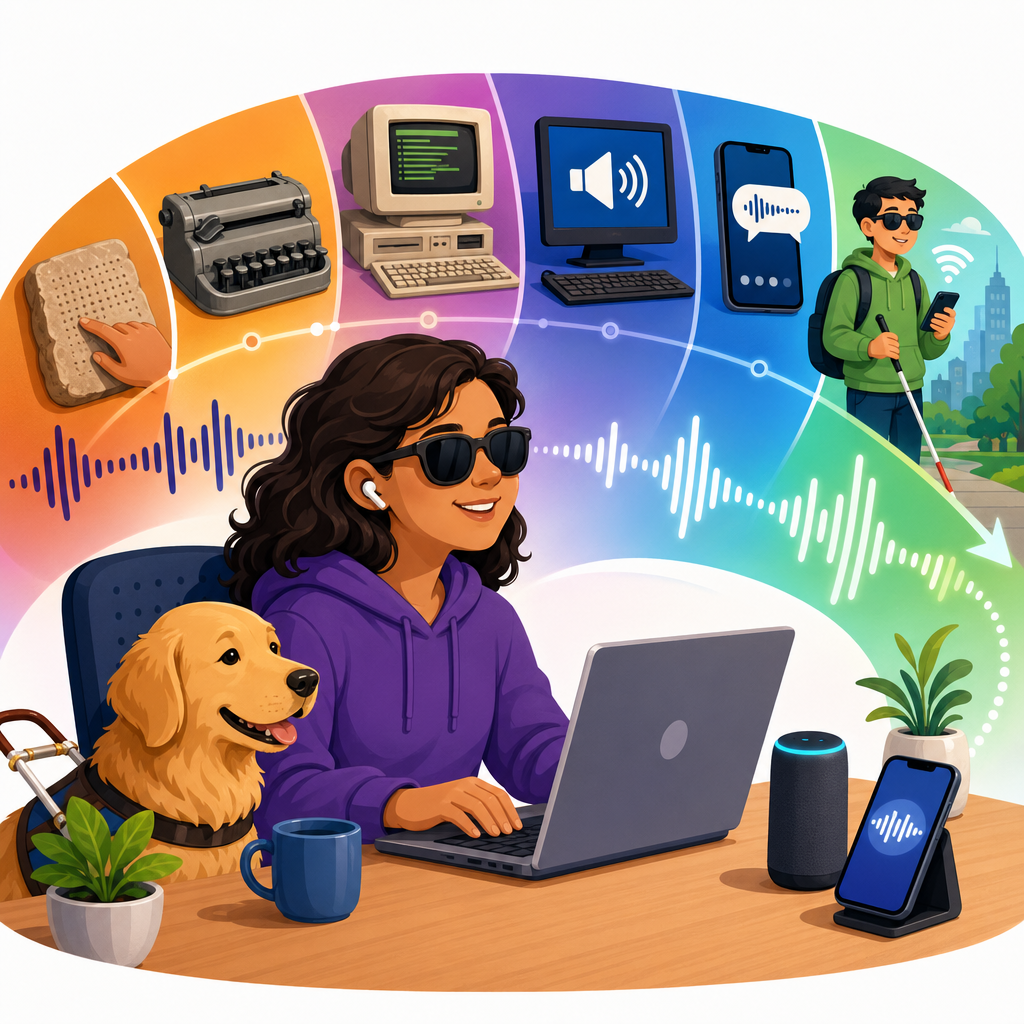
The earliest screen reading tools emerged in text-based computing environments where the screen had a predictable structure. In DOS systems, products such as IBM Screen Reader and Berkeley Systems OutSpoken for Macintosh translated text output into speech, often by reading characters, words, or lines based on cursor position. These systems were limited, but the underlying principle was powerful: if software could identify what was on screen and where user focus was located, it could transform visual output into another modality. As graphical user interfaces replaced command lines in the 1980s and 1990s, the challenge became much harder. Icons, windows, menus, dialog boxes, and mouse-driven interactions were not inherently accessible. Screen readers had to infer structure from operating system data, intercept events, and map changing visual layouts into something linear and understandable.
The breakthrough came when operating systems began exposing accessibility information in a more formal way. Microsoft Active Accessibility, later UI Automation, Apple accessibility frameworks, and Linux AT-SPI gave assistive technologies a standardized method for discovering controls, names, roles, states, and keyboard focus. This shift changed screen readers from fragile add-ons into robust access platforms. JAWS, first released in 1989, became dominant in Windows workplaces because it could handle enterprise software, browsers, and office documents at scale. NVDA, launched in 2006 as a free and open source alternative, accelerated adoption in schools, nonprofits, and public institutions. VoiceOver brought a built-in screen reader to macOS in 2005 and to the iPhone in 2009, proving that accessibility could be native, polished, and mainstream. TalkBack did the same for Android. These tools did more than read text aloud. They established the expectation that accessibility should be built into every layer of modern computing.
How screen readers actually interpret digital interfaces
A screen reader does not simply “look” at pixels and speak what it sees. In most cases, it relies on semantic information supplied by the operating system, browser, or application through accessibility APIs. Every meaningful interface element should expose a role, such as button, checkbox, heading, link, dialog, table, or text field. It should also expose a name, state, value, and relationships to other elements. When a user tabs to a button labeled “Submit application,” the screen reader can announce “Submit application, button.” When a checkbox is checked, collapsed, unavailable, or required, the user hears those states immediately. This translation of structure into speech is why semantic markup matters so much on the web and why native controls often outperform custom widgets.
On websites, browsers create an accessibility tree from the DOM, ARIA attributes, and rendered content. A heading structure allows quick navigation by level. Lists tell the user how many items they contain. Tables can announce row and column headers. Form labels, error messages, and instructions determine whether a task is usable or confusing. In desktop and mobile applications, the same principle applies through platform-specific frameworks. If developers fail to expose proper names, roles, or focus order, the screen reader cannot provide meaningful output. I have audited interfaces that looked modern and polished yet announced only “group,” “button,” or worse, nothing at all. The problem was not the screen reader. It was missing semantics, broken focus management, and inaccessible custom components.
| Technology | Primary Function | Typical Use Case | Key Limitation |
|---|---|---|---|
| Screen reader | Speech or braille output for interface content | Browsing, forms, apps, documents | Depends on accurate semantic information |
| Refreshable braille display | Tactile braille cells mirror screen reader output | Reading code, spelling, private access | High cost and limited display width |
| OCR and text recognition | Extracts text from images or print | Scanned PDFs, mail, labels | Accuracy varies with layout and image quality |
| AI image description | Generates descriptions of visual content | Photos, social posts, unlabeled images | May miss context or produce errors |
| Voice control | Lets users operate devices by speech | Hands-free navigation and dictation | Not a substitute for structured accessibility |
Major milestones in desktop and mobile screen readers
The history of screen reader technology is also the history of standardization, affordability, and platform integration. JAWS established a powerful scripting model that let organizations adapt inaccessible software, especially in enterprise environments using legacy Windows applications. That flexibility made it indispensable in banking, government, and corporate IT, even though licensing costs were significant. NVDA changed the market by offering broad Windows support, compatibility with braille displays, and an active community that quickly responded to browser and application updates. Many accessibility teams now test with both JAWS and NVDA because each reveals different implementation issues, particularly in web apps with dynamic content.
Apple’s VoiceOver marked another decisive milestone because it was built into consumer devices rather than sold as a specialist add-on. On the Mac, it supported keyboard navigation, rotor-based navigation, and braille integration. On iPhone, touch gestures were redesigned so blind users could explore by touch, hear item names, and activate controls with a double-tap. That model transformed smartphone access. A blind user could independently message, navigate maps, identify money through apps, use ride-share services, or authenticate with accessible banking tools. Google’s TalkBack, paired with Android Accessibility Suite, expanded similar access across a huge range of devices and price points, though fragmentation between manufacturers sometimes introduced inconsistencies. Today, ChromeVox on ChromeOS also plays an important role in education because schools widely deploy Chromebooks. The broader pattern is clear: built-in accessibility moved screen reading from a specialist niche into everyday digital infrastructure.
Advanced technology for accessibility beyond classic screen reading
Screen readers sit at the center of digital access for many blind users, but advanced technology for accessibility now extends far beyond speech output. Refreshable braille displays remain essential for users who need precise literacy, punctuation, formatting awareness, or quiet reading in meetings and classrooms. A braille display paired with a screen reader is often the best way to review code, spreadsheets, legal text, or foreign language material because braille exposes exact characters that speech can blur. Prices remain high, often ranging from several hundred to several thousand dollars, which is a persistent equity issue despite improvements in lower-cost devices.
Optical character recognition has also been transformative. Tools in Microsoft Lens, Seeing AI, KNFB Reader, and built-in smartphone camera features can detect and read printed text, handwritten snippets, receipts, and signs. OCR bridges the gap when content is trapped in images or scanned PDFs, although accuracy still drops with poor contrast, unusual fonts, or complex layouts. More recently, AI-based image description systems have helped users interpret unlabeled graphics, social media photos, product packaging, and charts. Apple, Google, and Microsoft have all added forms of automatic image description, while apps such as Be My Eyes combine AI assistance with human support. These tools are valuable, but they do not eliminate the need for proper alt text, accessible charts, and meaningful labels. Generated descriptions can be wrong, too generic, or omit the context that a human author should provide. In practice, the strongest accessibility stack combines semantic design, OCR, braille, speech, haptics, magnification, captions, and adaptable interfaces rather than depending on a single technology.
Where screen readers succeed, and where digital experiences still fail
Well-built interfaces are remarkably efficient with screen readers. A properly coded website lets a user jump by heading, skim links, search landmarks, fill out forms, and understand status changes without confusion. In documents, tagged PDFs, structured Word files, and accessible spreadsheets can be navigated with headings, bookmarks, tables, and comments. In mobile apps, correctly labeled controls and logical gesture flows create an experience that feels direct rather than compensatory. I have watched blind testers complete multistep account tasks faster than sighted reviewers because keyboard shortcuts and structured navigation can be extremely efficient when semantics are sound.
Failures usually come from predictable causes. Custom components built from generic div elements often lack roles, names, keyboard support, and focus behavior. Infinite scroll feeds may load content without announcing updates. Charts appear as images with no data summary. Video players expose unlabeled controls. PDFs are uploaded as flat scans. CAPTCHA systems block access unless an accessible alternative exists. Drag-and-drop interfaces, virtual whiteboards, and some remote desktop tools remain especially difficult. Complex single-page applications can also overwhelm users if headings are missing, route changes are silent, or modal dialogs trap focus. Compliance standards such as WCAG 2.2 and EN 301 549 help define what accessible implementation looks like, but passing a checklist is not enough. Real usability requires testing with screen readers in the environments people actually use, including combinations such as JAWS with Chrome, NVDA with Firefox, VoiceOver with Safari, and TalkBack with Android apps.
The future of screen reader technology and inclusive design
The next phase of screen reader evolution will be shaped by AI assistance, better interoperability, and stronger expectations around inclusive product development. AI can already summarize long pages, describe images, and help users query interface content conversationally. Used carefully, that can reduce cognitive load and speed discovery. Yet AI should augment structured accessibility, not replace it. If a button is unlabeled, the correct fix is to label the button, not ask a model to guess. The future also depends on richer standards support in browsers, mobile frameworks, and design systems so that accessibility is inherited by default. Companies that invest in accessible components, semantic front-end patterns, and content governance consistently outperform teams that try to patch issues after launch.
For organizations building a technology and accessibility strategy, screen reader support should be treated as foundational. Audit core user journeys, require semantic design reviews, test with assistive technology on every release, and train teams to understand focus order, headings, labels, error handling, and status messaging. Connect this work to related areas across advanced technology for accessibility, including captions, voice input, cognitive support features, magnification, switch access, and accessible document production. The lesson from the evolution of screen reader technology is straightforward: access improves when inclusion is engineered into products from the start. If you manage digital experiences, start by testing your most important tasks with a screen reader this week, then use what you learn to build accessibility into every product decision that follows.
Frequently Asked Questions
What is screen reader technology, and how does it help visually impaired users interact with digital devices?
Screen reader technology is a form of assistive software designed to interpret what appears on a computer, smartphone, or tablet screen and convert that information into speech output or braille. For people who are blind, have severe vision loss, or cannot reliably read standard visual interfaces, a screen reader serves as the main bridge between the user and the digital world. Instead of depending on sight to find buttons, read text, or move through menus, the user listens to synthesized speech, reads output on a refreshable braille display, or uses both methods together.
In everyday use, a screen reader allows someone to navigate websites, send emails, write documents, join virtual meetings, manage banking tasks, study online, shop, use public service portals, and enjoy entertainment platforms. It works by reading interface elements such as headings, links, form fields, buttons, notifications, menus, and document content. On many systems, it also announces structural information, including whether an item is selected, whether a button is collapsed or expanded, and whether a field is required. This extra context is what makes digital interaction practical rather than confusing.
Modern screen readers are used with keyboard commands, touch gestures, braille input, and shortcut keys that help users move efficiently through content. Rather than reading an entire screen from top to bottom every time, users can jump by heading, landmark, form control, list, table, or link. That ability is essential for speed and independence. In short, screen readers do far more than “read text aloud.” They translate digital structure, status, and navigation into accessible information, giving visually impaired users meaningful access to education, employment, communication, and everyday life.
How have screen readers evolved over time from basic tools into advanced accessibility systems?
The evolution of screen reader technology has been dramatic. Early screen readers were comparatively limited and often worked best only with text-based environments or highly predictable software. Their job was mainly to read lines of text from the screen in sequence, and they struggled when programs used complex graphics, custom controls, or changing layouts. As graphical operating systems became standard, the challenge grew significantly because information was no longer presented in a simple linear format.
To keep pace, screen readers evolved from basic speech utilities into intelligent access systems capable of interpreting user interfaces, identifying semantic structure, and working alongside operating system accessibility frameworks. This shift made it possible for screen readers to understand windows, dialog boxes, icons, menus, tables, web regions, and interactive controls in a much more reliable way. Instead of merely detecting what was visually displayed, modern tools can often recognize what an element is supposed to do and communicate that purpose to the user.
Another major area of progress has been integration. Today’s screen readers support web browsing, office productivity suites, mobile operating systems, cloud platforms, and mainstream apps used for work, school, and communication. They also pair with refreshable braille displays, support multiple languages, offer adjustable speech rates and voices, and include advanced navigation modes for reading by character, word, line, sentence, heading, or element type. Features such as OCR, image description, live region handling, and improved support for dynamic web content have expanded access even further.
The result is that screen readers are no longer niche, limited tools. They are now central digital access technologies that help users participate in nearly every part of modern life. Their development mirrors broader accessibility progress: a move from simple accommodation toward full inclusion, usability, and equal access.
What role do refreshable braille displays play alongside screen readers?
Refreshable braille displays are specialized hardware devices that work with screen readers to provide tactile access to digital content. Instead of relying only on spoken output, these devices raise and lower small pins to form braille characters that can be read by touch. This gives users another way to access information, and for many people it offers precision and privacy that speech alone cannot match.
Braille displays are especially valuable in situations where exact spelling, punctuation, formatting, or coding syntax matters. For example, a user editing a legal document, reviewing a spreadsheet, learning grammar, writing software, or checking a password field may need more detail than speech can conveniently provide. Braille also supports literacy in a direct way because it preserves the written structure of language. That matters greatly for students, professionals, and anyone who wants full control over reading and writing rather than relying solely on audio interpretation.
When combined with a screen reader, a refreshable braille display can mirror the content currently in focus, show status messages, and allow navigation through buttons, links, headings, and form fields. Many displays also include input keys, enabling users to type in braille and control their device without switching to a standard keyboard. This combination creates a flexible, multimodal experience: speech can provide speed and overview, while braille provides detail and silent reading.
As screen reader technology has evolved, braille support has become more sophisticated as well. Modern systems often allow users to customize contractions, cursor routing, display length, notification behavior, and language settings. This partnership between speech and braille has been one of the most important advances in accessible computing because it expands choice, accuracy, and independence for visually impaired users.
What challenges do screen reader users still face with websites, apps, and digital services?
Despite major progress, screen reader users still encounter serious accessibility barriers across the web and in mobile and desktop applications. The most common problem is that many digital products are not designed or tested with accessibility in mind. When developers use unlabeled buttons, vague link text, inaccessible forms, missing headings, poor keyboard support, or custom controls that do not expose proper accessibility information, screen reader users may be unable to complete basic tasks independently.
Dynamic content can also create difficulties. Modern websites frequently update parts of the screen without refreshing the page, and if those changes are not communicated correctly through accessibility standards, a screen reader may not announce them clearly. This can affect shopping carts, validation messages, chat interfaces, booking systems, menus, and dashboards. Likewise, poorly structured PDFs, image-based text, inaccessible CAPTCHAs, and complex data visualizations can still block access to essential information.
Another challenge is inconsistency. An application may be accessible in one version and then become harder to use after a redesign. Features may behave differently across browsers, operating systems, and screen readers. Even when an accessibility standard exists, implementation quality varies. This means users often need high levels of technical skill, adaptability, and patience to work around barriers that should not be there in the first place.
These issues matter because screen reader accessibility is not only about convenience. It directly affects a person’s ability to apply for jobs, complete school assignments, manage healthcare, access government services, communicate with others, and participate in culture and entertainment. The remaining challenges show that technology has evolved significantly, but true digital inclusion still depends on accessible design, semantic coding, standards compliance, usability testing, and meaningful input from blind and low-vision users throughout the development process.
Why is the continued evolution of screen reader technology so important for education, work, and independent living?
The continued evolution of screen reader technology is critical because digital access is now woven into nearly every part of modern society. Education depends on online learning platforms, digital textbooks, research databases, collaboration tools, and virtual classrooms. Workplaces rely on email, cloud software, data systems, project management tools, and video conferencing. Public services increasingly operate through websites and apps for forms, payments, transportation, healthcare, and civic participation. If screen readers do not keep advancing alongside these systems, visually impaired users risk being excluded from essential opportunities.
Ongoing improvement matters not just in terms of compatibility, but in usability and efficiency. It is one thing for a screen reader to technically access a platform; it is another for the experience to be smooth enough to support real productivity. Faster navigation, better handling of dynamic content, smarter interpretation of complex layouts, improved braille integration, more natural speech, and stronger support for mobile environments all help users perform tasks at a level closer to that of their sighted peers. That has direct implications for academic success, professional advancement, and personal autonomy.
There is also a broader social impact. When screen readers become more capable, they help reduce barriers to communication, financial independence, lifelong learning, and civic engagement. They support access to entertainment, news, social connection, and creative expression, which are all important parts of full participation in society. In this sense, screen reader innovation is not simply a technical story. It is a story about equal access, dignity, and the ability to make choices independently.
Looking ahead, the importance of evolution will only increase as digital systems become more interactive, personalized, and AI-driven. New interfaces must remain understandable and operable for nonvisual users. Continued progress in screen reader technology, paired with stronger accessibility practices across the tech industry, is essential to ensuring that innovation expands opportunity rather than creating new forms of exclusion.