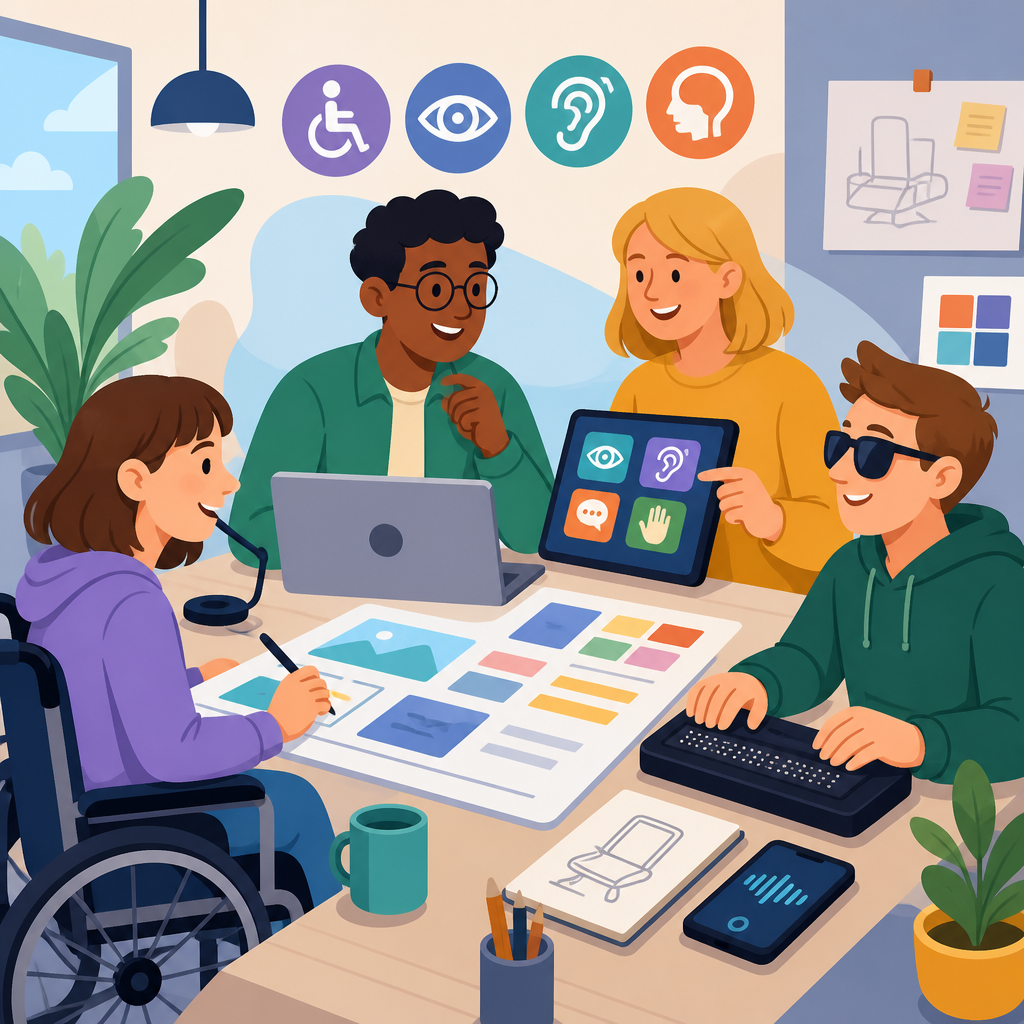
Assistive technology is any product, system, or software that helps a person with a disability perform tasks, access information, communicate, or participate more fully in daily life. In digital design, that definition includes screen readers, screen magnifiers, switch devices, alternative keyboards, speech recognition, braille displays, captioning tools, and many other supports that bridge the gap between user needs and the way products are built. When people ask what assistive technology is and how it interacts with design, they are really asking a deeper question: how do human differences meet interfaces, code, content, and physical environments?
This matters because accessibility is not a niche requirement. The World Health Organization estimates that more than 1.3 billion people live with significant disability, and many more experience temporary, situational, or age-related limitations. In practice, I have seen the same design choice affect very different users: a missing form label blocks a screen reader user, low color contrast frustrates an older adult with reduced vision, and tiny touch targets slow down a parent using one hand while holding a child. Assistive technology works best when design anticipates variation instead of assuming a single way to see, hear, speak, move, or process information.
For that reason, technology and accessibility must be treated as a connected system. Good design does not “add” accessibility at the end; it creates the conditions that allow assistive tools to interpret structure, announce controls, preserve meaning, and support independent use. Standards such as the Web Content Accessibility Guidelines, platform accessibility APIs from Apple, Google, and Microsoft, and semantic HTML all exist to make that interaction reliable. This article serves as a hub for exploring the basics of technology and accessibility, explaining the major categories of assistive technology, the design decisions that shape outcomes, and the practical principles teams should apply across websites, apps, documents, media, and devices.
What Assistive Technology Includes and Who Uses It
Assistive technology covers a wide range of tools because disability itself is diverse. For blind and low-vision users, common examples include screen readers such as JAWS, NVDA, and VoiceOver, refreshable braille displays, optical character recognition apps, and screen magnification software like ZoomText. For Deaf and hard-of-hearing users, assistive technology includes hearing aids, cochlear implant processors, real-time captioning, transcripts, visual alert systems, and text-based communication tools. People with mobility disabilities may rely on switch access, head pointers, eye tracking, keyboard-only navigation, sticky keys, speech input such as Dragon NaturallySpeaking or built-in voice control, and adapted mice. Users with cognitive, learning, or neurodivergent needs may benefit from text-to-speech, reading guides, simplified interfaces, focus tools, spelling support, and predictable navigation patterns.
Not every disabled person uses assistive technology, and not every assistive technology user identifies as disabled. That distinction matters in design work. Captions support Deaf users, but they also help people in noisy environments. Voice control supports users with limited dexterity, but it also helps drivers and multitaskers. High-contrast settings assist users with low vision, but they are equally useful on a sunlit mobile screen. The broad lesson is that accessible design and assistive technology create inclusive benefits beyond their original audience.
Another important distinction is between mainstream features and specialized tools. Features like built-in screen zoom, closed captions, dark mode, and voice dictation are now standard on major operating systems. Specialized tools such as dedicated braille note takers or eye-gaze systems are less common but essential for some users. Designers should understand both categories because mainstream features often expose barriers at scale, while specialized tools reveal edge cases that test whether an experience is truly robust.
How Assistive Technology Interacts With Digital Design
Assistive technology does not “see” a website or app the way a sighted mouse user does. It interprets the underlying structure exposed through code, accessibility trees, labels, roles, states, and relationships. A screen reader, for example, announces headings, links, buttons, landmarks, form fields, and status messages based on what the interface programmatically communicates. If a designer uses a styled instead of a real button, the control may look correct visually yet fail to announce itself as actionable. If a form field lacks an explicit label, speech output becomes vague or silent. If a modal dialog is not coded with focus management, keyboard users can become trapped or lost.
This is why semantic structure is foundational. Proper heading hierarchy helps users navigate by section. Landmarks such as header, nav, main, and footer support quick movement. Alternative text gives meaning to informative images. Descriptive link text helps users understand destination and purpose out of context. Error messages tied to specific fields improve form completion. In audits I have run, the most expensive accessibility fixes were rarely complex visual redesigns; they were failures to expose meaning in code early enough.
Interaction design is equally important. Keyboard access must mirror mouse access. Visible focus indicators show where users are on the page. Time limits need extension options. Motion should respect vestibular sensitivities through reduced-motion settings. Drag-and-drop actions need alternatives. Authentication flows should not depend on puzzle solving, precise dragging, or hidden gestures. When design patterns ignore these realities, assistive technology cannot compensate.
Mobile design adds another layer. Screen readers on phones use swipe-based navigation and rotor or local context menus rather than desktop shortcuts. Touch target size, orientation support, dynamic type scaling, and native control behavior heavily influence usability. A custom component that works tolerably on desktop can become unusable on iOS VoiceOver or Android TalkBack if it does not expose the correct role or reading order. Accessibility must therefore be tested in the environments where people actually use products.
Core Design Principles That Make Assistive Technology Work Better
The most effective accessibility work follows a few durable principles. First, preserve meaning through structure. Use real headings, lists, buttons, labels, tables, and landmarks instead of visually imitating them. Second, provide multiple ways to perceive information: text alternatives for images, captions for video, transcripts for audio, and sufficient contrast for text and controls. Third, support multiple ways to operate the interface: keyboard, touch, voice, switch, and pointer input should all remain viable wherever reasonable.
Fourth, keep experiences understandable. Plain language, consistent navigation, clear instructions, and predictable component behavior reduce cognitive load. Fifth, give users control. Let them pause moving content, adjust text size, choose reduced motion, and recover from errors without penalty. Sixth, ensure compatibility. Designs must survive translation into browser accessibility trees, operating system APIs, and assistive software output. That means using native controls when possible and carefully engineering custom widgets when necessary.
These principles are not abstract. Consider a checkout form. If every field has a visible label, clear required-state messaging, inline error identification, logical tab order, and support for autofill, the form becomes faster for everyone and dramatically easier for screen reader, keyboard, and cognitive support users. Consider a video tutorial. If it includes captions, speaker identification, transcript text, and a player operable by keyboard, it becomes searchable, skimmable, and accessible across many contexts.
| Design decision | Assistive technology impact | Practical example |
|---|---|---|
| Semantic headings | Enables screen reader section navigation | A user jumps from product overview to pricing without listening line by line |
| Explicit form labels | Improves field announcement and speech input targeting | “Email address, edit text” is announced correctly and can be selected by voice |
| Keyboard focus visibility | Supports non-mouse navigation and orientation | A user tabbing through a menu can see the active item at all times |
| Alt text for informative images | Conveys meaning when images are not visible | A chart image is summarized so key trends are available through speech or braille |
| Captions and transcripts | Improves access to spoken content | A webinar remains usable for Deaf users and for anyone reviewing it silently |
| Sufficient contrast | Improves readability in low vision and difficult environments | Light gray text is replaced with darker text that passes contrast requirements |
Common Barriers Created by Design and Development Choices
Many accessibility failures come from ordinary workflow habits rather than malicious neglect. Designers may prioritize visual novelty over recognizable patterns. Developers may replace native elements with custom components without rebuilding keyboard and screen reader support. Content teams may upload scanned PDFs with no text layer, post videos without captions, or write link text that says only “click here.” Product managers may treat accessibility as a late-stage compliance check instead of a design input.
Some barriers are especially common. Placeholder text used as the only label disappears once a user types and is often announced poorly. Infinite scroll can make orientation difficult and interfere with footer access. Carousels frequently move automatically, trap focus, or hide controls from keyboard users. Icons without text labels create ambiguity for screen readers and for users unfamiliar with the metaphor. Error messages shown only in color fail users who are blind, color blind, or cognitively overloaded. CAPTCHA challenges can block users with visual, hearing, motor, or cognitive disabilities unless accessible alternatives are provided.
Documents and enterprise tools often lag behind consumer websites. I regularly see inaccessible slide decks with reading order problems, spreadsheets with merged-cell confusion, and PDFs exported without headings, tags, or bookmark structure. Accessibility is not just a web issue. It affects procurement, internal operations, education, healthcare, and public services. If a job application portal, patient intake form, or classroom resource cannot be used with assistive technology, the result is exclusion with legal and economic consequences.
Standards, Testing, and the Role of Teams
Accessible design becomes consistent when teams align around recognized standards and repeatable testing. For web content, WCAG 2.1 and 2.2 provide success criteria across perception, operation, understanding, and compatibility. In software procurement and public-sector work, teams may also reference Section 508 in the United States or EN 301 549 in Europe. On native platforms, Apple Human Interface Guidelines, Material Design accessibility guidance, and Microsoft’s inclusive design resources add implementation detail.
Testing should combine automated checks, expert review, and hands-on use with assistive technology. Automated tools such as Axe, WAVE, Lighthouse, and Accessibility Insights catch issues like missing labels, low contrast, and structural errors, but they cannot judge whether alt text is meaningful or whether a workflow is understandable. Manual keyboard testing reveals focus order problems. Screen reader testing with NVDA, JAWS, VoiceOver, or TalkBack exposes naming, role, and announcement failures. Zoom testing shows reflow and clipping issues. Real user feedback is the strongest signal because lived experience often surfaces pain points that standards alone do not predict.
Successful teams distribute responsibility. Designers define accessible patterns, contrast, spacing, and content behavior. Developers implement semantic markup, focus management, and API exposure. Writers create clear labels, instructions, and alternatives. QA validates with tools and assistive technology. Leaders set requirements early, budget time for remediation, and measure accessibility as a product quality attribute. When ownership is shared, assistive technology compatibility stops being fragile.
Why This Topic Matters Across the Technology and Accessibility Landscape
Understanding assistive technology is the foundation for every other accessibility topic. It explains why semantic HTML matters, why accessible documents need tags, why mobile apps must respect platform controls, why captions and transcripts are not optional media extras, and why design systems should include tested accessible components. It also clarifies the difference between compliance and usability. A product may technically pass many checks yet still feel exhausting with a screen reader if headings are vague, focus order is noisy, or repeated blocks are hard to skip.
As a hub topic, technology and accessibility should be explored across websites, apps, documents, multimedia, hardware, procurement, policy, and user research. Teams that learn these basics make better decisions upstream. They avoid expensive retrofits, reduce legal risk, improve search visibility through cleaner structure and text alternatives, and build products that more people can use independently. The strongest accessibility programs do not ask whether assistive technology users can somehow cope. They ask whether the design itself cooperates with the tools people already rely on.
The key takeaway is simple: assistive technology and design are inseparable. Tools like screen readers, captions, voice control, braille displays, and switch devices only work well when products expose meaning, support flexible interaction, and follow established accessibility standards. If you are building under a technology and accessibility strategy, start with this foundation, audit your current experiences, and make accessibility part of every design and development decision from the first sketch forward.
Frequently Asked Questions
What is assistive technology in the context of digital design?
Assistive technology refers to tools, devices, software, and built-in system features that help people with disabilities use digital products more effectively. In the context of digital design, this includes screen readers for people who are blind or have low vision, screen magnifiers, braille displays, voice control software, switch devices, alternative keyboards, captioning tools, and other input or output supports. These technologies do not “fix” the user; they help bridge the gap between a person’s needs and the way an interface is structured.
From a design perspective, assistive technology interacts directly with the choices made in websites, apps, documents, and software. A screen reader depends on clear headings, meaningful button labels, and properly coded form fields. Captions depend on video players that support them. Voice input works best when controls are logically named and easy to activate. In other words, assistive technology is only as effective as the product’s accessibility foundation. Good design makes these tools work smoothly, while poor design can block access entirely.
How does assistive technology interact with design decisions?
Assistive technology relies on design and development decisions to interpret and present content in usable ways. When designers create strong visual hierarchy, predictable navigation, sufficient color contrast, readable text, and clear interaction patterns, they make it easier for people using assistive tools to understand and navigate the experience. When developers support those decisions with semantic HTML, keyboard accessibility, descriptive alt text, accessible forms, and properly labeled controls, assistive technologies can accurately communicate what is on the screen.
For example, a screen reader cannot infer visual intent if a button has no accessible name, and a keyboard-only user cannot activate features that require a mouse hover with no keyboard alternative. A user relying on speech recognition may struggle if clickable elements are unlabeled or duplicated in confusing ways. Even something as simple as a modal dialog must be designed and coded so focus moves into it, stays there appropriately, and returns when it closes. Design is not separate from assistive technology; it directly shapes whether assistive technology can do its job.
What are some common examples of assistive technology people use with websites and apps?
Common examples include screen readers such as JAWS, NVDA, and VoiceOver, which read aloud content and interface elements for users who are blind or have low vision. Screen magnification software helps users enlarge portions of the screen without losing context. Refreshable braille displays convert digital text into braille output. Speech recognition tools allow users to navigate and enter text using their voice. Switch devices and alternative input systems help people with limited mobility interact with interfaces using nontraditional controls. Captions and transcripts support people who are deaf or hard of hearing, while text-to-speech and reading support tools may assist users with dyslexia or cognitive disabilities.
It is also important to recognize that assistive technology includes mainstream accessibility features built into operating systems and browsers. Examples include keyboard navigation, zoom, reduced motion settings, high contrast modes, dark mode preferences, live captions, and larger text settings. Many users combine several tools at once. Someone might use screen magnification with keyboard navigation, or captions with transcripts and adjustable playback speed. Because users’ needs vary widely, accessible design should support a broad range of assistive technologies rather than assuming one standard way of interacting with a product.
Why is it important for designers to understand assistive technology?
Designers do not need to become experts in every assistive tool, but they do need to understand how real people use them. Without that awareness, it is easy to create interfaces that look polished yet fail in practice. A designer might rely only on color to communicate meaning, create custom controls that are difficult to identify programmatically, or prioritize visual animation without considering motion sensitivity and focus management. These decisions can make a product confusing, exhausting, or completely unusable for people who depend on assistive support.
Understanding assistive technology helps designers make better decisions earlier, when changes are easier and less expensive. It shifts accessibility from a last-minute compliance task to a core part of product quality. It also improves usability more broadly. Clear labels, logical layouts, consistent navigation, and flexible interaction methods help everyone, not just people with disabilities. When designers consider assistive technology from the start, they create experiences that are more resilient, inclusive, and adaptable across devices, settings, and user preferences.
How can teams design digital products that work well with assistive technology?
The best approach is to treat accessibility as part of the design and development process from the beginning. Teams should start with semantic structure, clear content hierarchy, readable typography, sufficient contrast, and predictable interactions. Every interactive element should be usable with a keyboard, every form field should have an explicit label, every meaningful image should have appropriate text alternatives, and every media experience should support captions or transcripts when needed. Designers should also account for zoom, reflow, touch targets, focus visibility, error recovery, and responsive layouts that remain usable under different settings and assistive conditions.
Equally important is testing. Automated tools can catch some issues, but they cannot replace manual review. Teams should test with keyboard-only navigation, screen readers, browser zoom, and mobile accessibility features. They should also involve people with disabilities in research and usability testing whenever possible, because direct feedback reveals barriers that guidelines alone may miss. Standards such as the Web Content Accessibility Guidelines (WCAG) provide a strong framework, but the real goal is practical usability. A product works well with assistive technology when users can complete tasks efficiently, confidently, and independently.